
The Viewport
The viewport is the center column: a tab strip, a toolbar, and the 3D stage the table is drawn on. It is the same PlayCanvas runtime a live table uses, put into an authoring state.

Read Frozen and Live first. It is the single most misread behavior in Edit Mode, and almost every "why won't this fall?" or "why did everything move?" question resolves to it.
The tab strip#
Above the toolbar, and only when at least one item editor is open, sits a tab strip: a fixed
Scene tab (the table viewport) followed by one tab per open editor.
Tabs carry a dirty dot when they have unsaved changes, and close via the ×, middle-click,
or Alt+W for the active tab. Ctrl+Tab and Ctrl+Shift+Tab cycle Scene → tabs → Scene.
While any tab is dirty, closing or reloading the browser prompts first.
Every open editor stays mounted — inactive ones are merely hidden — so switching tabs never loses in-progress editor state, and the table runtime keeps running underneath the whole time. The editors themselves are documented under Item editors.
The viewport toolbar#
Three groups of buttons sit directly above the stage, on the left. In a named editor
(/editor/room/{id} and friends) a further two groups — the camera selector and the
room-geometry toggles — sit at the right-hand end; see View
controls.
World and Local#
A pair labeled World / Local, controlling transformSpace. World is the default.
The value is handed to the runtime as part of transformGizmoState, so it decides which
axes the move, rotate and scale gizmos align to: the world axes, or the selected entity's
own. It changes nothing about the document — only how the gizmo is drawn and how a drag is
interpreted.
Gizmo mechanics are covered in Transform and gizmos; the tools themselves are on the transform rail.
Frozen and Live#
A pair labeled Frozen (snowflake) and Live (play). Edit Mode starts on Frozen —
simulationFrozen initializes to true.

What you will see#
On Frozen, nothing in the scene moves by itself. A die you place stays exactly where you put it, at the angle you put it at. Set something floating a foot above the table and it hangs there. Drop a stack of cards on top of a board and they do not settle, spread or slide off. Reload tomorrow and the scene is arranged exactly as you left it.
On Live, physics runs. The die falls, rolls and comes to rest somewhere you did not choose; the floating thing drops; the stack settles. That is what you want when you are testing how a game plays — and precisely what you do not want while you are placing things.
If an entity refuses to fall, drop, roll or settle, check this toggle before anything else.
What it actually does#
Frozen is not "preview off" and it is not a visual mode. The scene renders identically either way, colliders are still there, and you can still select, drag and gizmo everything. What changes is whether bodies are simulated.
TabletopRuntime.setSimulationFrozen(true) walks every table entity and flips each
dynamic rigidbody to kinematic, zeroing its linear and angular velocity. A kinematic
body is moved only by whoever sets its transform — the gizmo, a drag, the Inspector — never
by gravity or by a collision.
Four details follow from that, and each one is a behavior you will notice:
- Only bodies it actually froze are thawed. The runtime records the ids it converted.
Bodies that were already kinematic (a card held in a hand, an entity mid-gizmo-drag) or
static (a locked entity) are left alone and not recorded, so switching back to
Livecan never promote something to dynamic by mistake. - Entities spawned while frozen are frozen on creation. Drag a preset onto the table and it stays where it lands instead of free-falling to the surface.
- Releasing a drag re-freezes. A gizmo release or a drag release may flip a body back to dynamic and apply throw velocity; while frozen, the runtime re-freezes the released entity — and every co-dragged member of a multi-selection — so it holds the transform the gizmo just set. This is the only edit-mode hook on the release path; live play is untouched.
- Switching to
Liverestores velocity-free. Every body the freeze converted, and that is still kinematic, goes back todynamicwith zeroed velocities and is re-activated.
Frozen is session state#
simulationFrozen is React state in the shell. It is not persisted and it is not
part of the scene document — opening Edit Mode always starts you Frozen, whatever you left
it on, and the setting does not travel with the mod.
Running scripts switches you to Live#
Pressing Play Scripts while frozen switches the simulation to Live automatically and
logs "Simulation switched to Live so scripts can interact with physics." to the script
console. Most scripts need physics to observe motion at all, so starting them against a
frozen table would produce a scene that appears to do nothing.
It does not switch back when you stop. Re-freeze manually before you resume placing things — otherwise the arrangement you spent an hour on will settle the moment you look away.
Play Scripts, Stop and Restart#
The third toolbar group runs this scene's table scripts against the live viewport.
| Button | Shown when | Does |
|---|---|---|
Play Scripts |
Idle | Starts the script host. |
Stop |
Running | Tears the host down. |
Restart |
Running only | Restarts with the latest compiled output and clears session saved-data. |
Starting a run:
- Disposes any previous host and clears the session saved-data map.
- Requires compiled output. If none of the project's scripts have been compiled, it logs "No compiled scripts — open a script and Save to compile." and stops there. Compilation happens when you save a script in its editor.
- Passes every project script to the host — not just the compiled ones — so an uncompiled script produces an explicit "has no compiled output" diagnostic instead of degrading into an unknown-script-id error.
- Resolves attachments from the live runtime snapshot (
metadata.scriptIdon each entity), falling back to the draft, plus the scene-level script list. Entities you spawned or edited since the last load are therefore honoured. - Switches Frozen → Live if needed, then reports how many scripts and how many instances are starting.
While running, the toolbar's stop button is highlighted and the script
console shows Scripts running (N), where N is the
number of script instances (scene scripts plus per-entity attachments).
The editing-time environment is deliberately narrow: one synthetic player, turn management off, and saved-data held in an in-memory map that is cleared on stop and on every restart. Scripts that register a tick are driven at roughly 10 Hz.
⚠ A test run can change your document. Intents from scripts are applied directly to the runtime, and a
spawnresult is merged back into the scene draft — the same path a preset drop uses. Running a script that spawns entities therefore leaves those entities in your document, and marks the draft dirty. Undo them, or reload without saving, if you did not want them.
Stop disposes the host, clears saved-data and logs "Scripts stopped." The console strip
stays visible while it still holds output.
View controls#
At the right-hand end of the toolbar sit the controls that change how you are looking at the scene rather than what is in it. Nothing here edits the document, nothing here is sent to another player, and — with one exception noted below — nothing here is saved.
They appear only in a named editor. Plain /editor shows none of them. Which controls a
mode offers is declared by that mode, not by this toolbar, so the Table Editor never shows a
ceiling toggle and the Room Editor never shows a collider toggle.
The camera selector#
| Button | Camera |
|---|---|
| First person | Walk the room at eye height. Move with WASD, look with a right-drag. Esc returns you to orbit. |
| Fly | Free movement with no floor and no gravity — useful for looking down into a room or lining up a wall from outside it. |
| Orbit | The familiar camera: circle a focus point and zoom in and out. |
Moving in First person and Fly#
| Input | Effect |
|---|---|
W A S D |
Move. In Fly, W follows where you are looking, so nose-up climbs. |
Q / E |
Crouch and stand (First person); down and up (Fly). |
Shift |
About 2.2× faster, with every movement input including the wheel. |
| Hold the right mouse button | Look around. This is the only way to turn — the cursor is deliberately never captured, so it can still reach the Inspector. |
| Mouse wheel | Move forward and back along the way you are facing. It does not zoom: these cameras have no zoom, and the orbit camera's distance is preserved untouched so Esc puts you back exactly where you were. |
Esc |
Return to the orbit camera, in precisely the pose you left it. |
A short reminder of these appears over the viewport when you enter one of these cameras. It dismisses itself after a few seconds, and closing it by hand stops it coming back for the rest of the session.
Each mode offers only the cameras that make sense for it and opens in the first one. The Room Editor opens in First person, because framing a wall from an orbit camera means putting the camera on or below the floor. The Game Editor offers orbit only, so it shows no selector at all.
The buttons follow the camera, not the other way round: leaving walk mode with Esc, or
putting on a headset (which takes the camera over), moves the highlight without you touching
the toolbar. While a VR or passthrough-AR session is running the camera cannot be changed from
here, and the selector will simply stay where it is rather than pretending otherwise.
Room geometry#
| Toggle | Effect |
|---|---|
| Ceiling | Draws the room's ceiling. Turn it off to look down into the room from above. A ceiling removed by an opening is a different thing — that is authored, saved with the room, and this toggle does not bring it back. |
| Wall cutaway | Automatically hides the wall you have moved outside of — along with anything hanging on it — so you are never framing a room from behind its own wall. On by default. |
| Colliders | Rigid-body wireframes. |
Turning Wall cutaway off shows every wall at all times. That is occasionally what you want — checking that a wall's outside face is textured, for example — but be aware that at maximum zoom-out the camera sits outside the room, so with the cutaway off the frame is the outside of a wall and nothing else.
Ceiling and cutaway are per-person view settings: they live in this browser tab only, are
never written to the mod, and two people looking at the same room may legitimately disagree
about whether its ceiling is drawn. Colliders is the exception — it is the same setting as
the Room node's DEBUG VISIBILITY → Rigid Bodies, which is part of the document, so this
button is a second way to reach one value rather than a second value.
Render layers#
| Toggle | What it hides |
|---|---|
| Scene | The room: floor, ceiling, walls, posters, openings and scenery placements. |
| Table | The furniture of play: the table model and the seat zones. |
| Game | The pieces: every card, deck, die, token and board on the table. |
Three buttons, one per render layer. Turning one off hides everything on that layer at once — the fastest way to lay out pieces without the room in the way, or to check a room's ceiling without a table full of cards under it.
Hiding a layer is a view, not an edit. Nothing is removed, nothing is disabled and nothing is written to the mod; the toggles live in this browser tab exactly like Ceiling and Wall cutaway. They appear in the Room, Table and Game Editors — not the Asset Editor, which frames one thing on a turntable and has no second layer to hide.
Layers are also what a light's Layers field selects: a light reaches only the layers it lists, so a lamp can be made to light the room and not the pieces. See LIGHT.
The stage#
The stage (em-stage) hosts the PlayCanvas canvas, filling whatever space the layout gives
it. In Edit Mode it runs with the host viewer role and the interaction mode fixed to
transform. The table's play-time grid snap is off; Move drags use the editor's own
move assists instead.
Selecting#
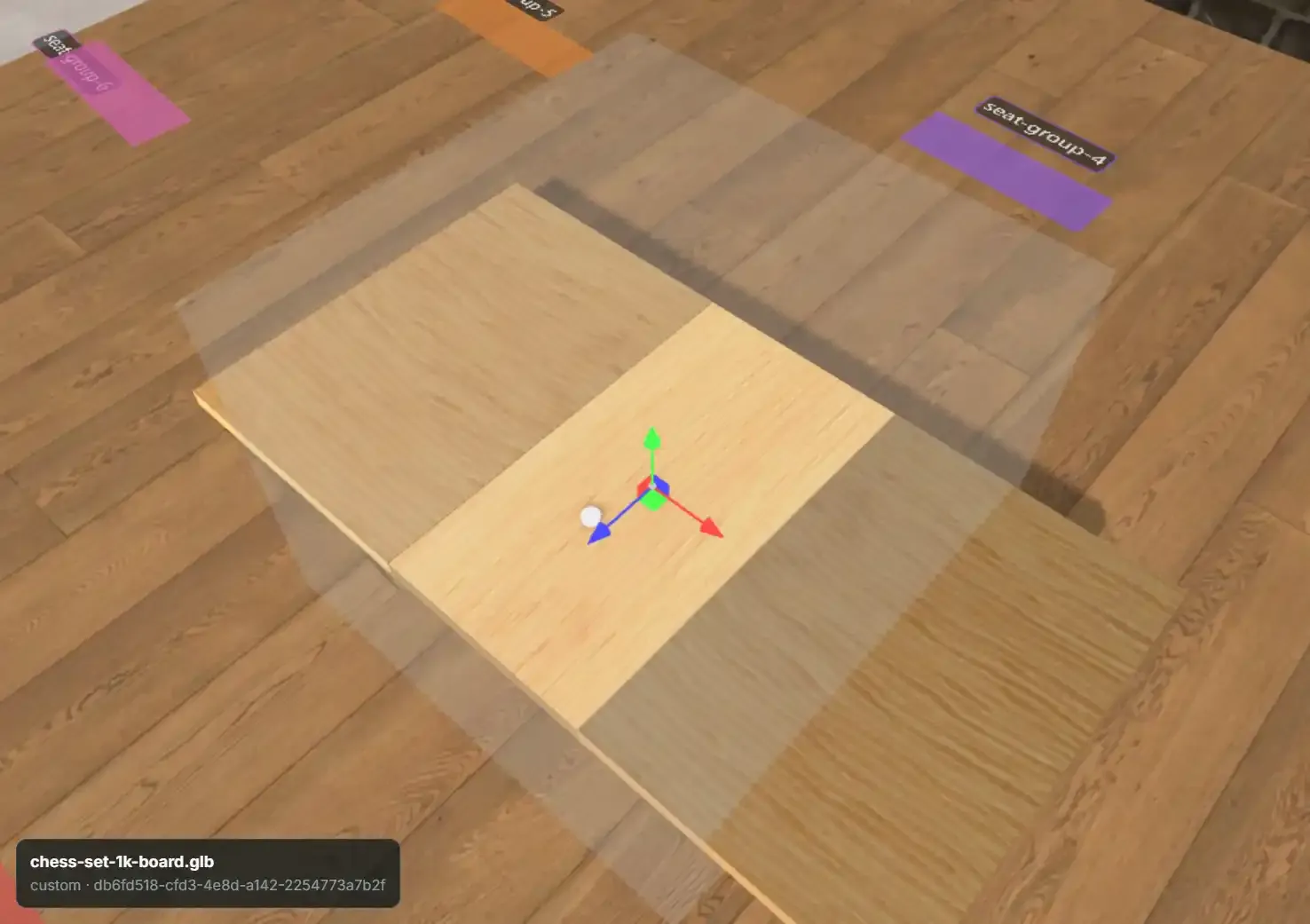
Clicking an entity in the stage selects it, mirrors that selection into the Hierarchy and the Inspector, and drops any active zone gizmo — selecting an entity is never also a zone selection. Selecting also captures the entity's current pose back into the scene draft, so what the Inspector shows always matches what the runtime has.
Selection changes the shell triggers itself (for example, clicking a folder row, which clears the entity selection) are ignored rather than echoing back.
The stage builds multi-selections too:
Ctrl/Cmd+click an entity toggles it in or out of the selection.- Drag a box over empty space with the left mouse to select every unlocked entity whose
centre is inside it.
Ctrl/Cmd+drag adds to the selection instead of replacing it. - A plain click on empty space still clears the selection.
- Pressing a gizmo handle never starts a box, so dragging a handle across empty felt moves the selection.
Whatever you select here appears in the Hierarchy and the Inspector's SELECTION (N) panel, and
a selection made there glows here. The gizmo attaches to the whole selection. Full rules on
Multi-select.
The selection overlay#
A small strip at the bottom of the stage shows, for the current selection, its slug in
bold and then {kind} · {id} — the two machine-facing identities, in the one place you can
always see them. With nothing selected it prompts you to select something.
The move assists box#
A small translucent box in the stage's top-left corner holds three switches: Snap points, Grid (with its spacing) and Magnetism. They decide what a Move-gizmo drag is pulled onto. All three start on. The box brightens under the pointer and is remembered per browser. In the Table Editor it sits under the table metrics readout. What each assist does is covered in Move assists.
Dropping things onto the table#
The stage is a drop target for three drag types from the asset explorer:
| Dragged | Result |
|---|---|
| A built-in preset | Instantiates that preset |
| An uploaded model | Instantiates a custom-model entity |
| A custom deck | Instantiates that deck |
The whole stage highlights while a valid drag is over it, and the drop position is projected from the pointer onto the table, so entities land where you release rather than at the origin. Drops are ignored until both a project and a scene are loaded.
Dragging a material or a texture does not target the stage — those are dropped onto their boxes in the Inspector. See Materials.
Overlays drawn on the stage#
- The box-select rectangle, while you drag over empty space. See Selecting.
- Move-assist guides, while a Move drag is held by an assist: green to a snap point, pink along an aligned edge or centre, orange across matched spacing, blue along a grid line.
- The surface plane, a translucent blue sheet at the play-surface height, while the Table
Editor's
Play Surfacerow is selected. See Play Surface. - The snap-point markers and radius discs, while
Show radiiis on or a snap sub-tool is armed — documented with the tool that draws them, on the transform rail. (The floating snap-grid HUD that used to sit here is gone: a grid is now an authored row in the Hierarchy.) - Debug overlays for rigid bodies, triggers and player zones, toggled from the Room
node's
DEBUG VISIBILITYsection. See Room and lighting. - The item-editor overlay, which covers the stage below the tab strip while an item tab is active. The canvas underneath stays mounted and the runtime keeps running; the overlay hides it.
- A temporary preview instance, while a Model tab's
Edit in viewportsession is open. It is a real entity on the table so the transform gizmos have something to grab, but it is locked, non-grabbable, excluded from snap resolution and filtered out of the snapshot, so it never reaches another player or a save. See the Model editor.
The Model tab's view toggles#
A Model tab draws its own toggle strip at the top-left of its viewport — Model, Grid,
Collider, Trigger volumes, Pivot, Bounds and a Rigidbody readout chip, with shortcuts 1–4
and `, plus an overflow menu carrying Highlight selected row, a four-way shading radio
(5 Shaded, 6 Wireframe) and a model-opacity slider. The full table is on
the Model editor.
⚠ That strip is not the Room node's DEBUG VISIBILITY section, and the two never talk to
each other. This is a real source of confusion, so it is worth stating plainly:
Room DEBUG VISIBILITY |
Model tab toggle strip | |
|---|---|---|
| Scope | The table, for everyone looking at it | One tab, for you |
| Stored in | The scene document (RoomSettings.debugVisibility) |
localStorage on your machine |
| Draws on | The main stage | The model preview only |
| Changes anything replicated | Yes — it is room state | No |
Turning on the model tab's Collider overlay does not turn on the table's rigid-body overlay, and clearing the room's debug visibility does not clear your model-tab preferences.
Panel layout and the resize separators#
Edit Mode's workspace is a four-column grid — the 46 px transform rail, the left panel column, the stage, and the Inspector column — with the assets bar below it at an explicit height.
<!-- screenshot: editor/interface/viewport-resizers.png -->
Three drag handles resize it. Each is a role="separator" element using pointer capture, so
a drag keeps tracking even if the pointer leaves the handle.
| Handle | Where | Drag direction that grows the panel |
|---|---|---|
Resize left panel |
Between the left column and the stage | Right |
Resize inspector panel |
Between the stage and the Inspector | Left — the handle is on the Inspector's leading edge |
Resize assets bar |
Top edge of the assets bar | Up — the bar sits below the stage |
Sizes are clamped as you drag:
| Value | Default | Range |
|---|---|---|
| Left panel width | 270 px | 200–520 px |
| Inspector width | 300 px | 200–520 px |
| Assets bar height | 560 px | 90–760 px |
The canvas reflows on its own — the runtime watches its container — so there is nothing to press after a resize.
The handles only exist on wide screens#
The inline grid override, and the three handles with it, apply only at a window width of 980 px or more. Below that the stylesheet's responsive rules own the layout and the separators are not rendered at all. The threshold is re-evaluated on window resize.
Layout is persisted per user in localStorage#
The three sizes are stored as one JSON object under
diceytable.editor.layout.{userId} — so two accounts sharing a browser keep separate
layouts, and the same account gets its layout back on every reload.
Writes are debounced by 250 ms, and flushed synchronously twice more: at the end of every drag, and when the shell unmounts. That is what makes "resize the Inspector, immediately press Exit" keep the new width.
On read the stored values are re-clamped to the ranges above, and an unparseable entry falls
back to the defaults rather than erroring. Persistence is best-effort throughout: if
localStorage is unavailable or full, the layout stops being remembered.
Two other pieces of pure UI state use the same best-effort localStorage treatment: the
Hierarchy's Show engine entities toggle, and the material inspector's Advanced mode. Your
undo history is stored there too, keyed per user and project.
What the viewport writes#
| Control | Written where |
|---|---|
| World / Local | Nothing — gizmo state only |
| Frozen / Live | Nothing in the document — live rigidbody types in the runtime |
| Play / Stop / Restart | Nothing directly; a running script's intents write the runtime, and its spawns are merged into the scene draft |
| Selecting / box-selecting on the stage | Nothing in the document — the shared selection only |
| Gizmo drag on the stage | position / rotation / scale on every entity the gizmo is attached to |
| Surface-plane drag (Table Editor) | The table pack's surface.surfaceY, on release |
Gizmo drag during a Model tab's Edit in viewport |
The Model tab's unsaved draft only — never the scene, never the snapshot |
| Model tab view toggles | localStorage only — not RoomSettings.debugVisibility |
| Drop onto the stage | Appends a new entity to the scene document |
| Resize separators | localStorage only |