
The Asset Explorer
The assets bar (em-assets-bar) is the strip beneath the viewport, spanning the full width of
the workspace. It is where every Definition in
your project lives — models, materials, textures, scripts and decks — next to a read-only
Library of what ships with DiceyTable.
Two panes: Project and Library#
The bar is split into two panes side by side:
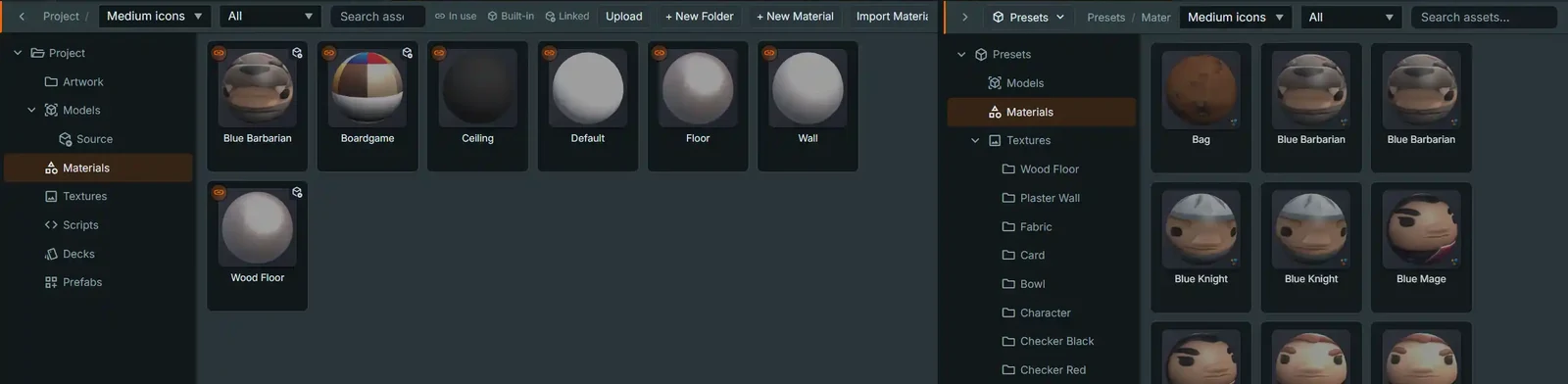
- Project (left) — everything you created or uploaded. Its tree has one root,
Project, holding the virtual folders (Models,Materials,Textures,Scripts,Decks,Prefabs) plus the real folders of your files. These folders also list the built-ins the scene actually uses — the felt your table is made of, a bundled deck you have placed — because whether a thing you are leaning on is yours or the platform's is exactly what decides if it gets published. Only ones in use appear here; browse the whole set in the Library. - Library (right) — a read-only browser with a source button at the top of the pane.
The first source is always Presets: DiceyTable's bundled
Models,Materials,Textures(broken into one sub-folder per texture set — Wood Floor, Plaster Wall, Fabric, and so on) andDecks. There is deliberately no Sounds folder: the licence for the bundled sound effects does not allow offering the clips as a library. Plugins your project uses can add more sources — see Library sources.
Each pane has its own folder, filter, search, view, sort and selection.
Resizing. Drag the divider between the panes; it starts at 60/40 and stays between 20% and
80%. Double-click it to go back to 60/40, or focus it and use the ←/→ keys. The chevron at
the top-left of either pane collapses that pane to a thin labelled rail; click the rail to bring
it back.
Your layout follows you. The split, which pane is collapsed, and each pane's view, icon
size and sort are saved as the assetExplorer preference. Signed in, it is stored with your
account, so it follows you to other devices; it is also kept in the browser, so a signed-out
session keeps its layout too.
What the Library offers#
The Library never uploads, creates, renames, moves or deletes anything. Right-click an item for:
| Action | Notes |
|---|---|
| Add to project | With several items selected it reads Add N to project. A preset whose licence does not allow copying it is shown disabled with the reason, not hidden; in a mixed selection the label says how many can't be copied. |
| Open (read-only) | Opens the item's editor tab, the same one double-clicking opens. Not offered for bundled decks, which have no file to open, or for plugin resources. |
| Copy path | |
| Show credit | A card naming the work, its creator, licence, origin, and whether it may be copied into a project. Disabled when no credit is recorded. For a plugin resource it shows the credit the plugin declares for that file. |
| Edit preset (admin) | Admins only, Presets only: the in-place built-in editing flow described in Item editors: Material. |
In the Library, Ctrl/Cmd+C is the only file shortcut. To bring library items into your
project, use Add to project, copy them and paste (Ctrl/Cmd+V) into the Project pane,
or drag them onto a Project folder. All three make
linked copies. You can still drag a preset straight onto the
table or onto a material slot.
Library sources#
Click the source button to switch what the Library shows. The list holds:
- Presets, always first.
- One entry per plugin your project lists on the manifest editor's Plugins tab — in the
order they are listed — whose registration declares resources.
A plugin that declares none, or is not registered, is simply not in the list. Hover an entry
to see the plugin's id and the short form of the commit it is registered at, for example
org.example.cards @ 3f9a1c2.
When no plugin in the project ships resources, the list says so, with an Open the Plugins panel… entry beneath it. Once at least one plugin source is present, that entry reads Manage plugins… instead. Both open the manifest editor (Mod ▸ Mod Details…) directly on its Plugins tab, which is where plugins are added.
A project that uses a plugin only for its files lists it with an empty function list,
{ "id": …, "functions": [] } — see
Using a plugin only for its resources.
Remove a plugin from the manifest while its source is open and the Library returns to Presets.
A plugin source shows exactly the files the plugin declares, at its registered commit:
- The tree's root is named after the plugin, and resources are grouped by their
folderlabel (Cards/BacksbecomesCards›Backs). A resource with nofoldersits at the root. - The right-click menu offers Add to project, Copy path and Show credit. There is no Open.
- Nothing about a plugin source can be uploaded, renamed, moved or deleted, and there are no sounds: a plugin resource cannot be one.
Views#
Pick a view from the View menu in a pane's toolbar, or right-click empty space in the item area:
| View | Shows |
|---|---|
| Large icons | 128 px preview, name on two lines |
| Medium icons | 88 px preview, name on two lines (the default) |
| Small icons | Small icon and name, flowing into columns |
| List | Small icon and full name, one column |
| Details | Columns: Name · Type · Folder · Size · Modified · Source · In use · Updates. Click a column header to sort by it; click again to reverse. Updates is not sortable; it shows a linked copy's status, and — for anything else. |
| Tiles | 48 px preview, name, and a type/size line |
Ctrl/Cmd+ mouse wheel over the items steps through the views from Large icons to Tiles. It stops at each end rather than wrapping.- Sort by (right-click empty space) offers Name, Type, Size and Modified, ascending or descending, in every view.
- Long names are shortened in the middle —
loft-interior…wall-04.webp, notloft-interior…— because a shared prefix is what makes a folder of exported files look identical. Hover any item for its full path. - Modified is when the file was last written on this device, read from the editor's local
file store. It shows
—for anything that is not a file there: folders, materials, scripts, prefabs, built-in items, and assets a legacy project still holds on the server. - In use on a folder means something inside it is used. A file nothing references shows
—. - Show hidden files, at the bottom of the View menu (Project pane only), lists the files the explorer normally keeps out of sight — see Hidden files. The choice is remembered with the rest of the explorer's layout.
Selecting#
Selection works like a desktop file manager, in whatever order the view is currently showing:
| Do | Result |
|---|---|
| Click | Select one item |
Ctrl/Cmd+click |
Add or remove that item |
Shift+click |
Select the range from the last clicked item |
Ctrl/Cmd+Shift+click |
Add that range to the selection |
| Drag on empty space | Draw a selection box; hold Ctrl/Cmd to add to the selection. The view scrolls when you drag near an edge. |
| Click empty space | Clear the selection (Ctrl/Cmd+click keeps it) |
Ctrl/Cmd+A |
Select everything in the folder |
Esc |
Clear the selection |
Arrow keys, Home, End |
Move through the items; add Shift to extend the selection |
Space |
Select the focused item (Ctrl/Cmd+Space toggles it) |
Folders select on click and open on double-click or Enter, the way a desktop file manager
does. Clicking a folder in the tree still opens it. A breadcrumb above the items (Project / …)
shows where you are and lets you jump back up.
A selection can mix kinds: textures, a material and a script at once. The item you clicked last drives the Inspector. Dragging any selected item drags the whole selection.
Moving, copying and deleting#
Every group operation in the Project pane runs through one pipeline, so they all behave the same:
| Operation | How |
|---|---|
| Move | Drag onto a folder (a folder item or a tree row), or Ctrl/Cmd+X then Ctrl/Cmd+V in the destination folder |
| Copy | Ctrl+drag (Option+drag on macOS) onto a folder, or Ctrl/Cmd+C then Ctrl/Cmd+V |
| Duplicate in place | Ctrl/Cmd+D — the copy is named Name (2), Name (3), … |
| Rename | F2, or Rename… in the right-click menu (one item at a time) — see Renaming in place |
| Delete | Delete (Cmd+Backspace on macOS), or Delete in the right-click menu |
A cut item is drawn dimmed until you paste it. A cut is used up by its paste; a copy can be pasted again.
Each item succeeds or fails on its own. A batch never stops at the first problem, and no single item is ever left half-moved. The status line summarises the batch: how many were done, and which were skipped or failed, with the reason for each.
Every reference to a moved file follows it. In a local-first project a file's id is its
path, so moving textures/wood.webp would otherwise break everything that names it. A move or
rename rewrites every whole-string reference to the old path:
- the scene (Entities, materials, and everything else in it);
- project JSON files: model
.meta.jsonmaterial bindings,.assembly.jsonpart models,.deck.jsonsheets and card sources,.cards.jsonart paths; - the manifest: the declared
assets,creditspaths,coverImage,screenshots, sound sets, andentry.script.
The files that belong to a file move with it: its .meta.json, .assembly.meta.json,
.collider.glb, .link.json and baked thumbnail. See
Sidecars.
A few moves are refused, and the summary says why:
- A file open in an editor tab with unsaved changes. Saving that tab later would put the file back at its old path. Save or close the tab first.
- A
.gltfthat uses files by relative path (external.binbuffers or textures) cannot leave its folder on its own, because those files would no longer be found. Move the whole folder instead. - Virtual folders (
Models,Materials, …) hold no files of their own, so you can't drop into one or move one. - Materials, scripts and prefabs live in the scene, not in a folder, so they can be renamed, duplicated and deleted but not moved.
- Server-held assets from older, non-local-first projects can't be copied here. Re-upload one to make it local-first.
Renaming in place#
F2 or Rename… turns the item's name into a text field right where the name was drawn, in
every view. It works on project files, folders, materials and scripts. The Library pane never
renames.
- What is preselected. For a file, only the name before the extension: renaming
hearts.deck.jsonselectshearts. For a folder, a material or a script, the whole name. Enterrenames,Esccancels. Clicking away also renames, unless the name is not valid. In that case the rename is cancelled and the status line says why.- The extension is kept. Type only a new stem and the file keeps its extension:
Oakonwood.webpgivesOak.webp. - Problems show before anything runs. An invalid name, or one that already exists in the
folder, is flagged under the field as you type.
Enterdoes nothing until it is fixed. The check ignores case, soWood.webpcounts as taken whenwood.webpexists. Changing only the case of the item's own name is allowed. - If the rename itself fails, for example because the file is open with unsaved changes, the field stays open with the reason under it. (If you clicked away instead, it closes and the reason goes to the status line.)
Renaming a file is a move, so every reference follows it, as above.
Deleting#
Delete asks once for the whole selection, in a dialog inside the editor. The dialog lists every item and marks the ones the scene uses with an In use tag, because whatever uses them falls back to a placeholder. Past 50 items the list ends with "…and N more".
It does not always ask. A single file the scene does not use is deleted straight away. A batch, a folder (deleted with everything in it), anything in use, and a script (objects bound to it are detached) are always confirmed.
So is a source file something else depends on, which you can only reach with Show hidden files on. The dialog names what you lose, because it cannot be undone:
- Deleting a preserved original under
originals/disables Revert to original and Re-encode from original for the model or texture imported from it. - Deleting a link record (
*.link.json) turns its linked copy into a plain project item: no more source updates, and no Reset to source.
An original nothing depends on any more (its model was deleted) is removed without the warning.
The confirm button (Delete, or Delete N items) has focus when the dialog opens, so
Enter deletes and Esc cancels. Clicking outside the dialog also cancels. While it is open,
the editor's other shortcuts are paused, so pressing Delete again cannot delete anything
behind it.
New folders persist#
New ▾ ▸ Folder makes a real folder: the editor writes a hidden, empty .keep file inside it,
so an empty folder survives a reload and a publish. Once the folder holds anything else, the
.keep is no longer needed and is removed.
The toolbar#
Each pane's toolbar has the breadcrumb, View, a type Filter (All, Models,
Materials, Textures, Scripts) and Search (substring match on name, and path for
project assets). The Project pane adds a badge legend, an Upload button and a New ▾ dropdown that holds
every create action:
| Control | Does |
|---|---|
| Upload | Opens the OS file picker — see Upload below. Disabled with no project loaded or while an upload is in flight. |
| New ▾ ▸ Folder (Project root and subfolders only) | Inserts an inline text field; Enter or blur commits it, Escape cancels. |
| New ▾ ▸ Material | Creates a project material and navigates to Project / Materials. |
| New ▾ ▸ Material from Texture Maps… | Opens a picker for a folder of PBR texture maps and builds one new material from them in a single action. Poly Haven and Substance naming are both recognised — see Texture sets. |
| New ▾ ▸ Script | Creates a project Table Script and navigates to Project / Scripts. |
| New ▾ ▸ Deck | Creates a new custom deck and opens its editor tab. |
| New ▾ ▸ Board from Image… | Opens a picker for one image, then a dialog that turns it into a game board — see Workflow: Making a board from an image. |
| New ▾ ▸ Card Data (only until the mod has card data) | Creates data/cardSchema.json and opens the Card Data tab. Once the file exists the entry disappears — open the file from the explorer instead. |
An entry the current editor does not offer (a Room pack has no scripts, for example) is left out of the list. The same list is on the menu bar as Mod ▸ New ▸.
Models, Textures and Materials have sub-folders:
- Models and Textures follow the file's path.
models/castle/castle-tower.glbsits inModels / castle, andtextures/chair/basecolor-….pngsits inTextures / chair. A folder holds only its own files, so the top ofModelsis not a list of every split part. Typing in the search box searches the sub-folders as well. - Materials follow each material's folder. A model import files the materials it extracts under the model's name; any other material stays at the top level.
Model imports put their extracted textures and materials in a folder named after the model.
Upload#
Upload accepts a mixed batch, and every route converges on the two things the runtime
actually loads — an image, or one self-contained .glb:
- Images — the six texture MIME types DiceyTable decodes: PNG, JPEG, WebP, GIF, BMP, AVIF.
- Binary glTF —
.glbfiles, uploaded as-is. - JSON glTF — a
.gltffile selected together with its external.binbuffers and texture images; these are packed into one.glbclient-side before upload. - DCC/interchange formats —
.fbx,.obj(with its.mtland textures selected alongside it),.dae(COLLADA),.stl,.ply,.3ds,.3mf,.off,.lwo, and DirectX.x. Each is converted to glTF in the browser via an embedded assimp build, then packed to the same self-contained.glb. Only formats verified end-to-end (source → assimp glTF → packed GLB → re-parsed) are on this list — an extension assimp can technically read but that silently produces an empty mesh is deliberately left off rather than shipped untested. .ziparchives — unzipped in the browser; their entries are routed through the same import pipeline, so a zip of images or a zipped model-plus-textures folder both work.- PBR texture sets — a batch of images whose names identify at least two different maps of the same texture set is imported as one material rather than as loose textures. See Texture sets below.
.sbsar— recognised, described, and not imported. See Substance archives below.
Only one model may be converted per upload batch — companion files (.mtl, textures,
.bin) are matched to their model by filename, so two source models in one selection would
fight over the same companions.
You can also drag files from your OS onto the assets bar itself (outside the grid's own
internal drag handling) to trigger the same import pipeline — the panel highlights and shows
Drop files to import while a compatible external drag is over it.
Uploading a file over a linked library copy (see Credits) asks first, in a Replace a linked file? dialog (Replace linked files? for several) that lists the files. The new bytes are no longer the library's, so replacing detaches the file: it stops receiving updates, and its credit becomes an ordinary one marked "derived from" the source. Replace and detach goes ahead, and you are then asked where the new file came from. Cancel imports nothing.
Texture sets become one material#
Drop the maps of a PBR texture set and you get a finished material, not a folder of images.
The rule is two or more different maps sharing one name stem, and it applies the same way
whether the files arrive loose (dragging an export folder's contents), in a .zip, or through
the toolbar's New ▾ ▸ Material from Texture Maps… entry.
Two naming dialects are understood, because the same five maps get named differently depending on where they came from:
| Map | Poly Haven and similar | Substance (Designer / Painter) |
|---|---|---|
| Base colour | _diff, _albedo, _col |
_BaseColor, _base_color |
| Normal (OpenGL) | _nor_gl, _nrm |
_Normal |
| Roughness | _rough |
_Roughness |
| Ambient occlusion | _ao |
_AO, _Mixed_AO, _AmbientOcclusion |
| Metallic | _metal |
_Metallic |
Case, separators and trailing resolution suffixes (_1k, _2048) are all ignored, so
wood_floor_diff_1k.jpg and Wood_Floor_BaseColor.png are both recognised as the base colour
of a set.
What the material actually gets wired to it:
- Wired — base colour, normal, ambient occlusion.
- Stored but not wired — roughness and metallic. They are uploaded and kept in the project,
but a material carries a single scalar gloss value and has no metalness-map slot, so
there is nowhere to connect them yet. Importing a roughness map sets gloss to
0.35. - Recognised but skipped, with a note — height/displacement, emissive, opacity, and packed
ORM/ARMmaps. These are reported by name so you can see the export was understood rather than being lumped into a silent "files ignored" count. - Skipped deliberately — DirectX-convention normals (
_nor_dx,_Normal_DirectX). Wiring one would invert the green channel and light every surface subtly wrong, which is worse than not importing it. Export OpenGL normals instead.
If the batch holds maps from two different sets, nothing is merged — the stems disagree, so the files import as plain textures and you can build each material yourself.
Substance archives (.sbsar)#
Dropping a compiled Substance archive reads it and tells you what is inside — the graph's name, its output channels, how many parameters it exposes, and its author. It does not become a material, and it is not stored in your project.
An .sbsar is not a texture set. It is a 7-Zip container holding a compiled procedural
graph — Adobe's own bytecode — which only the licensed Substance Engine can evaluate into
pixels. That engine is a native, commercially-licensed component; it is why Unreal, Maya and
Omniverse can open these files and why no browser-based tool can. The archive's description
is readable and is read; its material is not, and no decoder changes that.
The file is also not filed away, because every format DiceyTable will publish is one the
runtime can actually load. An .sbsar is not, so keeping it would add tens of megabytes to
your repo that nothing can read, and the publish scanner would reject it later anyway.
To use a Substance material on the table: open the .sbsar in Substance Player (free)
or Designer, export the bitmaps, and drop those here. They import as one material by the rules
in Texture sets above — Substance's default export naming
is already recognised, so no renaming is needed.
Items: what each kind does#
What an item does when you open or drag it depends on its kind:
| Item kind | Source | Double-click / Enter opens |
Drag does |
|---|---|---|---|
| Project model / Preset model | Models folders |
The Model editor tab | Places a custom-model or preset entity on drop onto the stage |
Model assembly (<name> (assembly)) |
Models sub-folder of a split model |
The Assembly tab — move, resize, replace, add or remove parts | Places the whole assembly as one entity on drop onto the stage |
| Project material / Preset material | Materials folders |
The Material editor tab | Assigns onto a RENDER material slot on drop |
| Project texture / Preset texture | Textures folders |
The Texture editor tab | Assigns onto a texture slot (a material map, a surface, a poster, the skybox) on drop |
| Project script | Scripts folder |
The Monaco script editor tab | Not draggable — attach a script from the SCRIPT or SCENE SCRIPTS section instead |
| Project deck | Decks folder |
The Deck editor tab | Places a deck entity on drop onto the stage |
| Bundled deck | Library Presets / Decks; also Project / Decks once the scene uses one |
Nothing — read-only, so there is no document to open | Places a deck entity on drop onto the stage |
| Prefab | Prefabs folder |
Selects it for the Inspector; double-click places a copy | Not draggable — double-click or use the Inspector's Place copy |
Text / config file (.json, .md, .ts, .js, .css, …) |
any folder | A plain code editor tab — text in, text out, written straight back to the project | Not placeable — drag to a folder to move |
Selecting a texture or material (rather than opening it) also drives the Inspector — the texture/material branches documented on materials-and-textures.md render from the same selection state the Hierarchy uses.
Selecting an item that is not an image or a model — a script, a JSON/config file, a
markdown doc, or a binary sidecar like a glTF .bin — drives a small File panel in the
Inspector instead (its id, name, size, path, and whether anything uses it). Text formats get an
Open in code editor button there. In the code editor a JSON file can be viewed Pretty
(indented) or Minify (single line) — the toggle reparses the document, so an invalid file
reports a parse error rather than being mangled.
An asset that is neither an image nor a placeable model (for example a .zip you uploaded that
wasn't routed anywhere useful) is shown but is not draggable onto the stage.
Hidden files#
The explorer hides files you never edit directly: .keep folder keepers, the generated
thumbnails (thumbnails/index.json and the thumbnails/<key>.webp images the editor writes),
link records (*.link.json), media/, rules/, originals/ and deck card source images. A
file you put under thumbnails/ yourself — say thumbnails/cover.png — is not generated, so it
stays visible. Don't keep table assets there, though: nothing under thumbnails/ is ever
declared in manifest.assets, so players don't download it before a table starts.
View ▸ Show hidden files lists them, dimmed and marked with a crossed-out eye, in the folder
they really live in. While it is on, the real models/ and textures/ folders appear in the
tree when they hold hidden files (a model's .link.json sits beside the model), in addition to
the usual Models and Textures folders. Pickers, the Textures tab and the Models /
Textures folders never list hidden files, so one cannot be assigned to anything by accident.
A hidden file belongs to the editor, which finds it by its path. You can:
- Select it to read its type, size, path, modified time and what it is for in the Inspector.
- Delete it —
Delete, its right-click menu, or the Inspector's Delete button. This is how you reclaim the space of a largeoriginals/copy. See Deleting for the warning a source file carries. - Copy its path.
You cannot open, rename, move, copy, duplicate, drag or place one; those entries are absent from its menu, and the keyboard shortcuts skip hidden files in a mixed selection.
screenshots/ is not hidden. It holds the photo-mode captures you take in
Preview, each image beside its .json sidecar,
and you can browse, open and download them here like any other file. Like thumbnails/, nothing
under it is ever declared in manifest.assets and no thumbnail is generated for it. To promote,
retake or delete a capture together with its sidecar, use the
Screenshots gallery instead.
Prefabs#
The Prefabs folder holds the scene's reusable configured objects (prefabs[] in
setup.json) — an entity set up once and placed any number of times, each copy linked back by
metadata.prefabId. Unlike every other folder here it is backed by the scene document, not
by files on disk, so there is nothing to upload into it: you fill it by configuring an object on
the stage and saving it as a prefab.
Each prefab renders the real model, the way the table would draw it, using the same offscreen renderer the Models folder uses: the prefab's own custom model when it has one, otherwise the standard preset it was built from (tinted with the prefab's colour), otherwise the default model for its kind. A prefab whose model has not been primed locally, or which resolves to nothing renderable, falls back to an icon. The same preview appears at the top of the prefab's Inspector, so the colour picker there is edited against the model it actually tints.
The subtitle names the prefab's kind and how many copies of it are currently placed.
Bundled decks#
The decks DiceyTable ships — currently KayKit Standard 52 and KayKit Four-Coloured 52, two full 52-card decks — live in the Library under Presets / Decks, where you browse everything on offer.
They appear in your Project / Decks folder too, but only once the scene actually uses one, after your own decks. That is the same rule the Materials and Textures folders follow, and it matters here in particular: a bundled deck has no file behind it, so one listed in your project folder that you never placed could not be removed.
They behave like any other deck once placed: shuffle, deal, hands, face-down hiding and multiplayer replication are all identical. The differences are all about ownership:
- They need no project. Their art is served from DiceyTable itself rather than from a mod repo, so you can place one on a table that has no project attached at all, and remote players see it without installing anything.
- They are read-only. There is no file behind a bundled deck, so double-clicking one does not open the Deck editor — there would be nothing to save to. To change one, place it and use Duplicate to project, exactly as with a preset material or texture. Your copy is then an ordinary project deck you can edit freely.
- They cannot be deleted. There is no delete affordance, and the right-click menu omits Delete for the same reason it does on a preset.
Each bundled deck's sheet also carries two joker cells the default 52-card deck does not use. Duplicate the deck to a project and you can add them without importing any art.
Right-click an item in the Project pane#
What the menu offers depends on what the item is:
| Action | Shown for | Notes |
|---|---|---|
| Open editor / View | everything with an editor | "View" for platform items, which are read-only from a project. Not offered for preset models or bundled decks. |
| Place on table | models (project and preset), decks (project and bundled), image files | Disabled with "Open a scene first." when no scene is open, rather than hidden. |
| Split into parts… | project models (not assemblies) | On a linked library copy, asks first — see Credits. |
| Optimize image… | image files | Opens the texture tab, where Resize and Compression live. On a linked library copy, asks first. |
| Duplicate | project files, project materials | Duplicates in place as Name (2), with its sidecars. |
| Duplicate to project | platform items (preset materials, textures, models, bundled decks) | Copies the item into the project as a linked copy — the same as the Library pane's Add to project. This is how you start customizing one. See Credits and linked copies. |
| Show what uses this | anything in use | Names the scene objects that reference it. |
| Copy path / Copy id | everything | Path for file-backed items, id otherwise. |
| Rename… | project files, materials, scripts | Opens the inline rename field. Renaming a file is a move: every reference follows it. |
| Delete | project items | The same confirmation as the Delete key — see Deleting. |
| Show source | linked copies | Names the source in the status line. For a preset copy, it also switches the Library pane to Presets and searches for the preset's name. For a plugin copy, pick that plugin as the Library source yourself. |
| Reset to source | linked copies | Asks first, then drops every change you made to the copy's settings and takes the source's current ones (and its new bytes, if the source's file changed). Disabled on a detached copy, and on one whose file you changed here — detach that instead. |
| Detach from source | linked copies | Asks first, then keeps the item as a plain project item that no longer receives updates. Its credit stays, unlocked and marked as derived from the source. |
An action that does not apply is omitted; one that applies but cannot run yet is shown disabled with a reason. The difference matters — silently dropping the second kind is how someone concludes a feature does not exist.
When the item you right-click is part of a selection, keyboard commands and drags act on the whole selection; the menu acts on the item you clicked.
Why platform items have no Delete#
A platform item appears in a project folder only because something references it. Deleting the item without deleting what points at it would simply make it reappear. To change a platform item, Duplicate to project makes a linked copy you own; Reset to source later takes that copy back to the platform's version.
Credits and linked copies#
Dragging items from the Library pane onto the Project pane (or a project folder), pasting a library selection, Add to project and Duplicate to project all make linked copies:
- The copy is a real project item — published to your repo and loaded from it.
- What it needs comes with it: a material brings its textures, a model its slot materials. A dependency the project already holds a linked copy of is reused, not copied again.
- Copying the same item a second time makes an independent copy named
Name (2). - No credit question is asked: the credit comes from the source (below).
- Sound clips are never offered, and presets whose licence has not been verified are skipped with the reason.
- A plugin resource's files are copied only through the asset CDN, which serves exactly the paths the plugin declared at its reviewed commit. Without a configured CDN, plugin items are skipped.
Applying a source update is all or nothing per item: if anything fails part-way, the copy's files and link record are put back as they were. If you change a copy's file while the review is open, Apply leaves that item alone and asks you to detach it instead.
Each copy keeps a small link record beside it (<file>.link.json, or
links/materials/<id>.link.json for a material). The explorer hides these and shows a Linked
badge instead (see What the badges mean). The status line reports each
add: what was added, how many existing linked copies were reused, and what was skipped and why.
When the source changes (a platform update, or a plugin re-registered with a changed resource), the badge and the Details view's Updates column show Update available. A bar at the top of the Project pane reads N linked items have source updates, with Review and a close button. Review source updates lists each item with a checkbox to include it:
- Changes only the source made are listed and applied as they are.
- A setting that both you and the source changed is a conflict. Pick Keep mine or Take source for each one, or use Keep all mine / Take all source. Nothing is picked for you, so Apply N updates stays disabled until every conflict in the selected items has a choice.
- An item whose file you changed here cannot take an update. Detach it to keep your change.
Reset to source and Detach from source are on the item's right-click menu; see Right-click an item.
Projects made before linked copies existed may hold a material that kept a built-in's id. When such a project opens, it gets a link record for that material automatically. See Provenance.
A file copied from a library item carries that item's credit locked: it is the source's
credit, not a statement you made, so the credits editor shows it read-only. It moves with its
file and leaves when the file is deleted. See
credits.locked and
Credit and Being Credited.
Changing such a file's bytes detaches it, after a confirmation. Optimize image… and Split into parts… on a linked copy first open a Detach name ? dialog. It names the source, says the action changes the file itself, and lists what detaching means:
- It becomes a plain project file.
- It stops receiving updates from its source.
- Its credit stays, marked as derived from the source.
Detach and continue has focus, so Enter confirms, then the action runs. Esc or
Cancel leaves the file linked and does nothing. Uploading over a linked file asks the same
way, in the Replace a linked file? dialog. Once detached, the credit is an ordinary
one you can edit.
Thumbnails#
A project item's picture is an image stored in your mod, under its thumbnails/ folder,
not a live render. A tile only loads that image, so scrolling through a large folder stays
cheap. The file layout and publishing rules are in
Sidecars § Baked thumbnails.
Which items get one:
| Gets a thumbnail | Keeps its icon |
|---|---|
| Models, model assemblies, materials, prefabs, textures, custom decks | Scripts, sounds, JSON and other text files, card data files, deck card source images |
In List, Details and Small icons the thumbnail is drawn at icon size in place of the glyph. Projects from before local-first storage (server-held assets) have no stored thumbnails and keep drawing their previews the old way.
How they are made. The editor generates them in the background while the project is open, items you can see first, then the rest when the editor is idle, one at a time. Until an item's image exists its tile shows an icon.
When they are remade. An image is regenerated when the item or anything it draws changes. Editing a texture regenerates the materials that use it and the models that use those materials; changing a model's material bindings, an assembly's parts, a deck's sheets or a prefab's model does the same. Material edits wait until you stop changing values for about half a second, so dragging a slider renders once. The old image stays on the tile until the new one is ready — you never see a blank tile in between.
How they look:
- Models, assemblies, materials and prefabs are shot in a fixed studio with its own lighting and a subtle dark gradient backdrop. The room you have loaded plays no part, so a thumbnail looks the same whatever room it was rendered in.
- Textures and decks are flat art, shown whole (letterboxed, not cropped) over a checkerboard, so transparent areas are visible.
In Large icons and Medium icons, thumbnails are drawn dimmed until you hover or select them; see What the badges mean for why.
The mod badge#
In Large icons, Medium icons and Tiles, every project item's thumbnail carries a small round badge in its bottom-right corner showing whose item it is:
- The project's cover thumbnail, when a cover is set in Mod Details and its file is in the project.
- Otherwise the project owner's avatar — the owner's, not yours, so a collaborator sees the same badge you do. Removing the cover in Mod Details switches the badge to the avatar, even though the cover files stay in the project.
The badge is laid over the tile, not baked into the image, so changing the cover updates every tile straight away without regenerating anything, and no avatar is ever written into your repo. Library items never get one.
Thumbnails in the Library#
- Presets use a thumbnail shipped with DiceyTable when one is available for that preset; otherwise the tile draws as it did before.
- Plugin resources use the
thumbnailimage the plugin declares for that resource. With none, the editor renders one in the same studio and caches it in this browser — never in your project, because it is not your file. A newly registered commit of the plugin gets fresh renders.
What the badges mean#
The Project pane's toolbar carries a legend for these:
-
In use (link icon, top-left) — something references this. That includes references the scene never names directly: a deck definition's face sheet, its back, and every card's source image are all marked in use, so a deck's sources cannot be mistaken for orphans and deleted.
-
Built-in (bottom-left) — see Provenance.
-
Linked (top-right, in Large and Medium icons) — a copy of a library item. The icon turns orange for Update available when the source has changed. It turns amber when the copy's file was changed here (Changed locally; detach it to keep that change) or the source is no longer available (Source missing). Hover the badge for which one it is. A detached copy has no badge. The Details view's Updates column spells out the same status in words, and also shows Detached and Up to date. See Credits and linked copies.
-
Unpublished — the file differs from what is on GitHub, as in a code editor's file tree. M (amber) means its bytes changed on this device since the project was last published or synced; U (green) means GitHub does not have it yet. In the row views the name takes the same colour; on a folder it is a dot, meaning something inside is unpublished. The comparison is by content, so saving a file back to identical bytes clears the mark, and a Publish clears them all. A project with no GitHub repository never shows it, and neither do
setup.jsonanddiceytable.mod.json: the editor generates those from the draft on every save, so the top bar's save state is what tells you the scene has unpublished changes. -
Not declared (amber
!) — the file is in the project but not in the manifest'sassets, so players will not download it. A folder shows it when it holds such a file. Declare it in the Manifest editor. Only filesassetscould hold are marked — a README, the entry script,screenshots/and hidden files are undeclared by design.
In Large and Medium icons these two sit at the top centre of the tile; elsewhere they follow the name.
In Large and Medium icons, thumbnails render dimmed until hovered or selected. The badges are small and card art is bright and full-bleed; at full brightness a 16px icon over a face card is invisible.
See also#
- Keyboard Shortcuts — every explorer key in one table.
- Sidecars — the
.link.json,thumbnails/and.keepfiles the explorer manages for you. - The Viewport — the stage side of a preset/model/deck drag.
- Item editors: Model — the full model-import pipeline (bake/repair, optimization, embedded-texture replace).
- Working with materials — assigning a material once it is on the table.
- Working with textures — texture-specific authoring concerns.
- Writing a Plugin § Resources — how a plugin declares the files its Library source shows, their folders, credits and thumbnails.