
Material Editor
Double-click a material — a project material or a built-in preset — and it opens as a tab: a live interactive sphere preview on the left, and the full material inspector on the right.
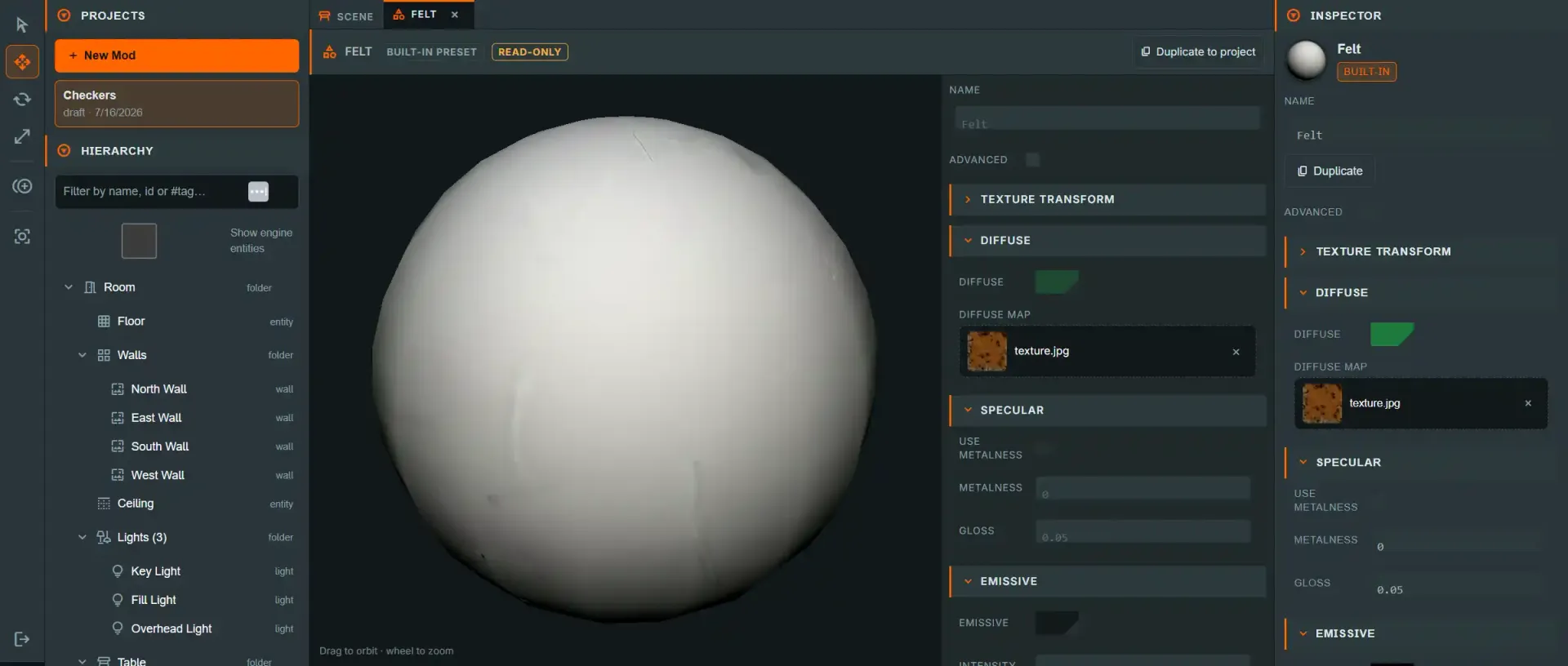
See the tab strip conventions — dirty dots, closing, cycling and mounted-but-hidden tabs apply here too.
The live preview#
The sphere on the left is rendered by an interactive preview session on the same PlayCanvas app as the table — not a separate renderer — so what you see here is exactly how the engine will shade the material. Drag to orbit, wheel to zoom. Edits reach the preview through a short (~150 ms) debounce, so dragging a slider doesn't rebuild the material every frame.
The 15 sections#
The inspector is the same 15-section field set the scene Inspector's RENDER panel
uses for a metadata.materialId assignment, with an Advanced toggle that hides
sections most authors never need. Rather than duplicate every field here, the full
per-field reference — name, type, range, default, and what each one does at runtime —
lives on the inspector reference page:
- Material fields, section by section (part of the Inspector reference) — Texture Transform, Ambient, Diffuse, Specular, Emissive, Opacity, Normals, Parallax, Clearcoat, Sheen, Refraction, Iridescence, Environment, Lightmap, Other.
How edits are saved#
Unlike the model, texture and deck tabs, a material edit has no per-tab Save button — edits go straight through the scene draft's existing material-update path (the same one the scene Inspector and the swatch cards use), so the tab, the Inspector and the 3D scene never disagree about a material's current props. The tab marks itself dirty on the first edit and clears when the draft itself is saved.
Editing a project material affects every object that references it. There is one copy of a project material; changing it is not scoped to whichever object you happened to select when you opened the tab.
Built-in materials and admin overrides#
Built-in materials are read-only for everyone except admins, with a Duplicate to project action. It copies the material into your project as an editable linked copy, brings its textures along, and opens the copy's tab. Editing the copy never touches the original. The copy stays linked to the built-in, so it can take later platform updates, be Reset to source, or be detached. See Credits and linked copies. Duplicating is also how a non-admin captures an admin's in-place tweaks as a project-owned starting point.
Admins editing a built-in in place work on a staged copy (never a copy-on-write project material) and publish it with:
- Save globally — writes a
preset_overridesdatabase row (RLS-enforced); applies wherever that built-in material is used, on next material push or reload. - Write to source (local dev server only) — writes into
apps/web/public/preset-overrides.json, shipping as the new bundled default with the next deploy.
As with model and texture overrides, a database row always wins over the bundled file when both exist for the same material.
⚠ Write to source requires a signed-in Supabase admin, verified on the server. It was
previously gated only by loopback plus a cosmetic client-side check. A missing, malformed or
expired token, a non-admin account, or a Supabase outage is a 403 — it fails closed rather
than falling through to allow. With SUPABASE_URL unset the server falls back to loopback-only
and logs a loud warning on every write, so offline development still works.
See also#
- Working with materials
- Item editors: Texture — editing the images a material's texture slots reference
- Item editors: Model — the equivalent admin-override flow for preset spawn defaults