
Moving, Rotating and Scaling Entities
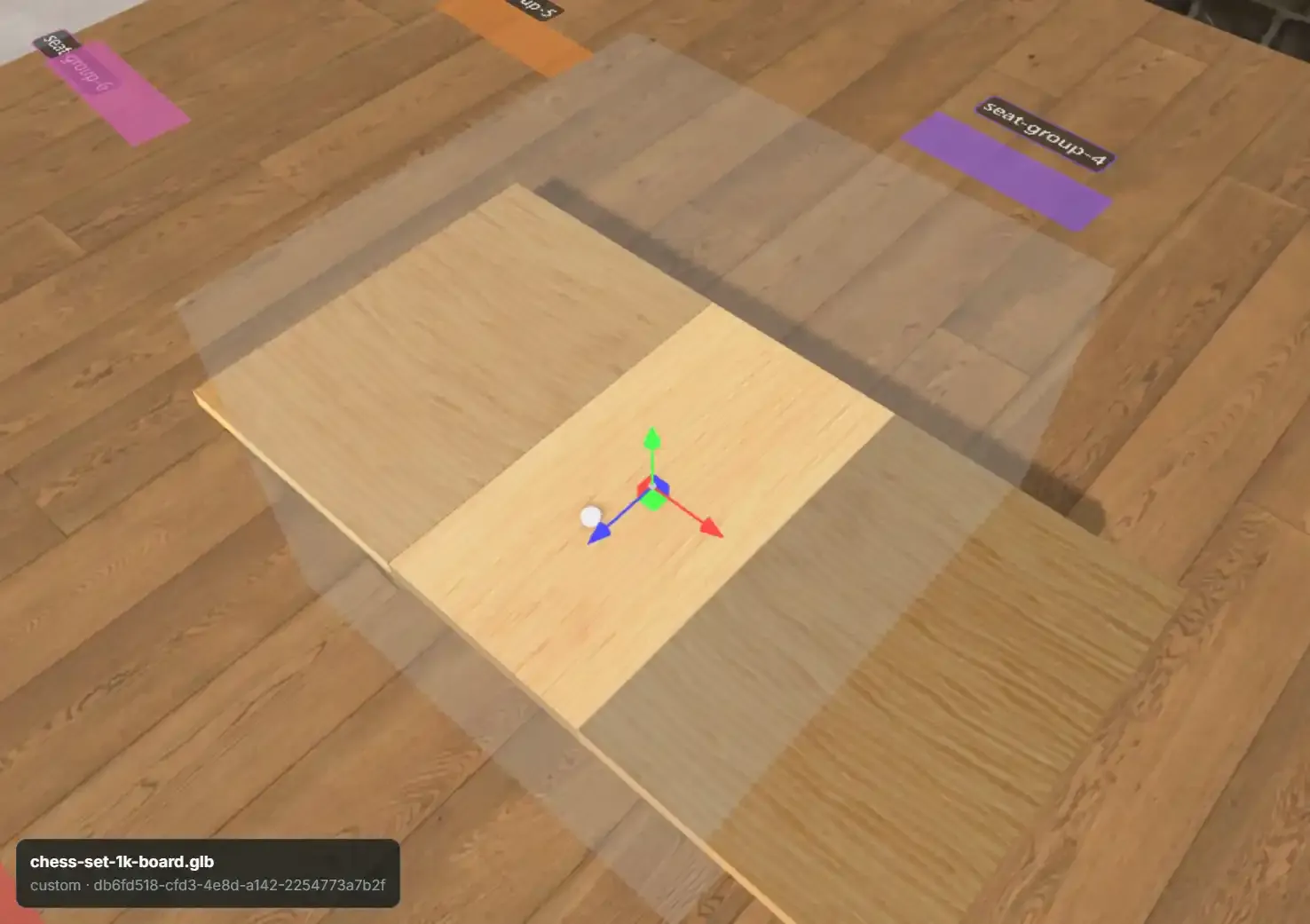
Edit Mode positions entities with the same gizmo family PlayCanvas uses elsewhere: one tool at a time, chosen from the left-hand transform rail or its keyboard shortcut.
The four tools#
| Tool | Shortcut | Icon | What it does |
|---|---|---|---|
| Select | Q |
arrow | No gizmo — click to select without risking an accidental drag. |
| Move | W |
crosshair | Translate gizmo — drag an axis or a plane handle. |
| Rotate | E |
ring | Rotate gizmo — drag a ring around one axis. |
| Scale | R |
corners | Scale gizmo — drag an axis handle or the center for uniform scale. |
Pressing a shortcut (or clicking a rail button) with a Snap Point tool active exits that tool first, so you never have a snap-authoring gesture and a transform tool armed at the same time.
Transforming several entities at once#
Select more than one entity (from the Hierarchy, or with Ctrl/Cmd+click or a dragged box on
the stage) and the gizmo attaches to all of them:
- Move moves the whole selection together.
- Rotate orbits every member about the selection's shared centre.
- Scale follows the
Scale gizmosetting in the Inspector'sSELECTION (N)panel: Size + spacing (the default: the arrangement scales as one), Size only (each entity grows in place) or Spacing only (they move apart or together; none is resized). Spacing spreads on the table plane only, so every entity keeps its height.
Locked entities stay selected but are left out of the gizmo, the arrow-key nudge and GROUP EDIT's scale buttons. A child whose parent is also
selected is left out too, because it already moves with that parent. Details, and the
GROUP EDIT buttons for exact factors, are on Multi-select.
Keeping proportions#
The lock button beside the Inspector's Scale label keeps an entity's proportions. While it is on, typing into one axis scales all three, and Scale-gizmo drags keep proportions as well — the axis you dragged furthest drives all three. It is remembered in this browser. See ENTITY.
World vs Local space#
The World / Local pair above the viewport controls which axes the gizmo's handles align to:
- World — handles align to the table's fixed axes. Dragging "X" always moves an entity the same direction regardless of how it is rotated. This is the default and the one you want for most placement.
- Local — handles align to the entity's own rotated axes. Useful once an entity is rotated and you want to nudge it "forward" relative to itself rather than relative to the table.
This only changes gizmo handle orientation. It has no effect on parenting or on how a transform is stored — position and rotation are always authored in the entity's own local space relative to its parent (the world if it has none), independent of which space the gizmo is currently showing.
Units#
Position and size fields, and the arrow-key nudge below, are all in the table's world units —
feet (WORLD_UNITS_PER_METER is the conversion the runtime uses internally for physics and
VR; the numbers you type and see in the Inspector are feet). A standard card is roughly
{1, 0.02, 1.4} feet, for scale.
Editing a collider or trigger volume with these gizmos#
The Model editor's COLLISION and TRIGGER VOLUME panels borrow this same gizmo family
through an Edit in viewport button, with a Move / Rotate / Scale selector that mirrors the
rail's W / E / R for muscle memory.
The drag happens here, on the table stage — not in the model preview, which presents through an offscreen buffer and has no pointer path a gizmo could take input from. Starting a session therefore puts a temporary preview instance of the model on the table for the gizmo to grab: locked, non-grabbable, excluded from snap resolution, filtered out of the snapshot so no other player and no save ever sees it, and torn down when you finish, close the tab, leave Edit Mode or unload the page.
Two differences from an ordinary entity drag:
- Rotate is available, for both trigger volumes and collider entries, because each carries its own rotation for the drag to land in. (The older object-level collision box gizmo offers only Move and Scale — a box collider has nowhere to write a rotation.)
- Nothing is written to the scene. The drag rewrites the Model tab's sidebar numbers, which are its unsaved draft; the sidebar fields and the gizmo are two views of one value, each updating the other live. Committing is still the Model tab's save bar.
See the Model editor.
Move assists: snap points, grid and magnetism#
While you drag with the Move gizmo, three assists pull the entity into place when it comes close to something worth lining up with. All three are on by default. Turn each one off from the small translucent box in the top-left corner of the viewport (it brightens when you hover it). The choice is remembered in this browser and is not saved to the project.
| Assist | Pulls the entity... | Guide colour |
|---|---|---|
| Snap points | ...onto a Snap Point, or a board's own snap square, when its pivot is inside that point's snap radius. Takes both X and Z at once. | Green |
| Magnetism | ...so an edge or its centre lines up with a nearby entity's edge or centre, or so its gap to its neighbours matches the gap already in that row (continuing a row, or sitting midway between two neighbours). | Pink (alignment), orange (spacing) |
| Grid | ...so its pivot sits on a grid line. The spacing is picked in the box (0.05 to 1 ft, default 0.25 ft). | Blue |
How the assists interact:
- Precedence. A snap point wins outright. Otherwise, on each of X and Z separately, magnetism beats the grid.
- They pull, they don't step. An assist only acts within a few screen pixels of its target, so everywhere else the drag stays continuous. Because that distance is measured on screen, the pull feels the same zoomed in on a card or zoomed out over the whole table.
- Only the axes you are dragging. Dragging the red X arrow never nudges the entity in Z. In Local space, a rotated entity's axis arrow gets assists only when it runs along a world axis. Its table-plane handle always gets them.
- Multi-selections move as one. The combined footprint of the selection lines up, and a dragged board never snaps to its own squares.
- Height is untouched. Assists act on the table plane (X/Z) only. Rotate, Scale and arrow-key nudging are never assisted.
Arrow-key nudging#
With an object selected and focus outside any text field, the arrow keys nudge it along the
table plane in world axes regardless of the current gizmo space: Up/Down move -Z/+Z,
Left/Right move -X/+X. The step is 0.05 units, or 0.25 with Shift held. This is the
fastest way to make a small, precise placement correction without fighting the gizmo's drag
sensitivity.
With a multi-selection, the arrow keys move the whole selection by the same step, as one undo step. Children ride with a selected parent, and locked entities hold still.
The Snap Point tool#
The magnet-looking button on the transform rail is not the drag-snapping toggle — those switches live in the viewport's corner box (see Move assists), and Rotate/Scale drags are always continuous. What the rail button opens is the Snap Point authoring tool: Snap Points are their own Platform concept — small marker positions a script or a game's own logic can use as alignment targets (a board's grid squares, a set of card-deal positions) — and this flyout is how you place them:
| Sub-tool | Effect |
|---|---|
| Place | Click the table to drop a single Snap Point. |
| Move | Drag an existing Snap Point to a new position. |
| Delete | Click a Snap Point to remove it. |
| Grid | Configure rows, columns and X/Z spacing, then click once to place the whole grid as a batch. |
Escape unwinds Snap Point authoring one step at a time: an in-progress grid batch finishes
first, then the active sub-tool clears, then the flyout closes — only then does Escape fall
through to clearing the scene selection.
Frame selection#
The rail's right-most button before the divider is labeled "Frame selection (F)", and the
same action is View ▸ Frame Selection in the menu bar. Press F, click the button or use
the menu: all three re-select the current object in the viewport (the same call the Hierarchy
uses to focus a row), refreshing its glow and re-attaching the gizmo.
The camera does not move. Despite the name, nothing frames the view yet — see the transform rail.
Common mistakes#
- Fighting an assist you don't want. If a piece keeps jumping to a neighbour's line or a grid line, switch that assist off in the viewport's top-left box. For an exact value, type it into the Inspector's transform fields.
- Pressing F expecting the camera to move.
Fre-selects and re-attaches the gizmo; it does not move the camera yet. - Confusing the Snap Point tool with a snapping setting. The rail tool places Snap Points you can reference later (a Platform concept in its own right). Whether a Move drag snaps to them is the Snap points switch in the viewport's corner box.
- Not noticing World vs Local before rotating. A rotate in Local space on an already-rotated entity moves handles that no longer point where you expect — switch to World if the result looks wrong.
See also#
- Mod scripting API —
TableObjectDefinition.position,rotationandscale, the same three values a mod sets at creation. ObjectHandle—setPositionandrotate, moving an entity from a table script instead of by hand.