
Multi-select
You can select more than one entity at a time, from the Hierarchy or directly in the viewport.
Whichever way you build it, it is one selection: the viewport glows every member, the
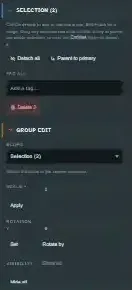
transform gizmo drives all of them, and the Inspector gains a SELECTION (N) panel for bulk
operations and a selection scope inside GROUP EDIT.
Selecting more than one row#
| Action | Result |
|---|---|
| Click | Replace the selection with this one entity (the usual single-select). |
| Ctrl/Cmd + click | Toggle this entity in or out of the selection. |
| Shift + click | Select the visible range from the last plain-click anchor to this row. |
One entity in a multi-selection is always the primary selection — the one the rest of the
Inspector (transform fields, PIECE, RENDER, and so on) edits. Ctrl/Cmd-clicking the
current primary out of the selection promotes another member so the Inspector never goes
blank while rows are still selected.
Object rows only#
Multi-select applies to object rows exclusively. Folders (Room, Walls, Lights,
Entities, …) and Tag Groups (seat-group-0, …) never join a selection, and modifier clicks
on those rows behave like a plain click. This is deliberate, not an oversight worth filing a
bug about: folders and seat groups have no shared bulk operation to offer — there is
nothing for SELECTION (N) to do with "3 folders and a seat group" that it could not already
do with each individually. Object rows are the unit multi-select is built around.
Selecting in the viewport#
With the transform tools active (any of Q/W/E/R), the stage builds the same selection:
| Action | Result |
|---|---|
| Click an entity | Replace the selection with that entity. Clicking one that is already selected keeps the selection, so you can start dragging the group from any member. |
| Ctrl/Cmd + click an entity | Toggle it in or out of the selection. |
| Drag a box over empty space (left mouse) | Replace the selection with every entity whose centre is inside the box. |
| Ctrl/Cmd + drag a box | Add the boxed entities to the existing selection. |
| Click empty space | Clear the selection, exactly as before. |
A few rules decide what a box picks up and when one starts:
- Only the centre counts. An entity half inside the box is selected if its centre is, and not if it is not — the box does not test bounds or overlap.
- Locked entities are never boxed, and neither is anything you could not pick up with the pointer. Select those from the Hierarchy instead.
- Pressing a gizmo handle never starts a box. The handle owns that press, so dragging an arrow over empty felt moves the selection rather than replacing it.
- A press that barely moves is a click. Under about 5 pixels of travel it is treated as a click on empty space (which deselects), or, with Ctrl/Cmd held, does nothing.
- Left mouse only. The right and middle buttons drive the camera, and touch has no box select — one finger on empty felt orbits.
The viewport and the Hierarchy feed one selection in both directions. A box drawn on the stage
highlights those rows and opens SELECTION (N); a Shift-click range in the Hierarchy glows
those entities on the stage and attaches the gizmo to all of them. If the current primary is
still in the new selection it stays primary; otherwise the first entity picked becomes primary.
One gizmo for the whole selection#
The Move, Rotate and Scale gizmos attach to every selected entity at once:
- Move translates the whole selection together.
- Rotate turns every member about the selection's shared centre, so an arrangement turns as one piece instead of each entity spinning in place.
- Scale follows the
Scale gizmosetting inSELECTION (N)— see below.
Two kinds of member are left out of the gizmo on purpose:
- Locked entities are skipped. They stay selected (so bulk actions like Tag all still reach
them), but nothing that moves or scales the selection touches them — not the gizmo, not the
arrow keys, not
GROUP EDIT'sScale ×buttons. - Children whose parent is also selected are skipped, because they already ride with that parent. Attaching both would move the child twice.
The arrow-key nudge (0.05 ft, 0.25 with Shift) also moves the whole selection, by the same
rules: unlocked selection roots only.
Ctrl/Cmd+C, Ctrl/Cmd+D and Delete act on the whole selection too, and
Ctrl/Cmd+V pastes everything that was copied. See Keyboard
Shortcuts.
The SELECTION (N) panel#
Once more than one object is selected, a SELECTION (N) section appears in the Inspector,
below the single-entity Inspector content, with:
-
Scale gizmo — how a Scale-gizmo drag treats a multi-selection:
Option What a drag does Size + spacing (default) Scales the arrangement as one: every entity grows, and they move apart from the shared centre on the table plane by the same factor. Size only Every entity grows in place; the gaps between them stay the same. Spacing only Entities move apart or together about the shared centre on the table plane; none of them is resized. Spreading happens on the table plane only (X and Z): every entity keeps its height, so pieces resting on the table stay on it — the same rule as
GROUP EDIT's Spacing button below.The setting only matters with two or more gizmo targets. A single entity always scales in place. It is not saved — it resets to Size + spacing when Edit Mode reloads.
The gizmo measures the factor along the world axes, from the first target. That is exact for unrotated entities dragged in World space and a close approximation for rotated ones. For an exact factor, type it into
GROUP EDIT'sScale ×row instead. -
Detach all — set every selected entity's
parentIdtonullin one action. -
Parent to primary — parent every other selected entity under the primary selection. Disabled when the resulting reparent would be illegal for any member (see All-or-nothing validation below) or when there is no primary.
-
Tag all — a tag-input field that applies each tag you type to every selected entity. It is write-only by design: the field always returns empty after a commit, so it reads as "type a tag to add it everywhere" rather than accumulating a stale chip list.
-
Untag all — one pill per tag present anywhere in the current scene; clicking a pill removes that tag from every selected entity that has it.
-
Delete N — deletes every selected entity after one confirmation. Deleted parents follow the same least-destructive default as a single delete: their children move up to their parents rather than being deleted with them — see Parenting.
GROUP EDIT's selection scope#
GROUP EDIT (bulk show/hide, lock, scale and rotate) resolves the set of entities it acts on
from one of three sources: a Hierarchy subtree, the active tag-filter pills, or — new here —
the current multi-selection. When more than one object is selected, Selection (N) appears
as a scope option alongside "All descendants" / "Direct children" / "Tagged #…", so the same
bulk transform tools work on an arbitrary hand-picked set of entities, not only on entities
that happen to share a folder or a tag.
Scale ×: Size, Spacing or Both#
Type a factor into the Scale × row, then press one of three buttons:
| Button | Effect |
|---|---|
| Size | Multiplies each entity's scale by the factor. Each one grows or shrinks in place; nobody moves. |
| Spacing | Moves the entities apart (factor above 1) or together (below 1) about their centre on the table plane. Only X and Z change: every entity keeps its height and its size. |
| Both | Size and spacing together, so the whole arrangement scales as one. |
Spacing is the one to use to open up a cramped layout — a ring of tokens, a grid of cards — without resizing anything or lifting pieces off the table. Its centre is the average X/Z position of the entities being patched.
Only unlocked selection roots are patched. A child whose parent is in the same set rides with that parent, so it is not scaled or moved a second time, and a locked entity holds still — as it does for the gizmo. Each press is one undo step.
All-or-nothing validation#
A bulk reparent (drag or Parent to primary) validates every entity in the operation
before moving any of them: canReparentObjects requires validateReparent to pass for every
id (TableEditModeShell.tsx). If any single member's parent would be illegal — a
cycle, a too-deep chain, the primary is inside the set of entities being parented under it —
none of them move. A partial bulk reparent that silently succeeded for 3 of 5 pieces would
leave you guessing which two failed and why; failing the whole operation and reporting "That
parent is not valid for every selected entity" does not.
Dragging a whole selection#
Drag any row that is part of the current multi-selection, and the drag carries the whole
selection — not just the row you happened to grab
(TableEditModeShell.tsx: dragPayloadIds returns the full selection set when
the dragged row is a member of it, and just that one row otherwise). This matters: without it,
a multi-select followed by a drag would silently move only the one piece you dragged, leaving
the rest of the selection behind with no visible sign anything was left out.
The drop target renders one of two distinct affordances while you drag over it, so a rejected target does not just fail to highlight — it visibly refuses:
- Legal target — the row highlights as a valid drop (
em-tree-row-drop). - Illegal target — the row highlights as a rejected drop (
em-tree-row-nodrop), and the browser's own drag cursor shows "no drop" (event.dataTransfer.dropEffect = "none").
Dropping on the Entities folder specifically means "detach the whole dragged set to the
scene root" — it is the one folder row that is a valid drop target, precisely because it is
where entities with no parent live.
Roots within the selection are found before validation runs: if a selected entity's ancestor is also in the selection, that entity is dropped from the reparent set entirely (moving the ancestor already moves it, and reparenting both would flatten the assembly one level).
See also#
- Parenting — the single-entity reparent rules
canReparentObjectsenforces per member. - Tags and groups — the tag mechanics behind Tag all
/ Untag all and the
taggedGROUP EDITscope.