
Texture Editor
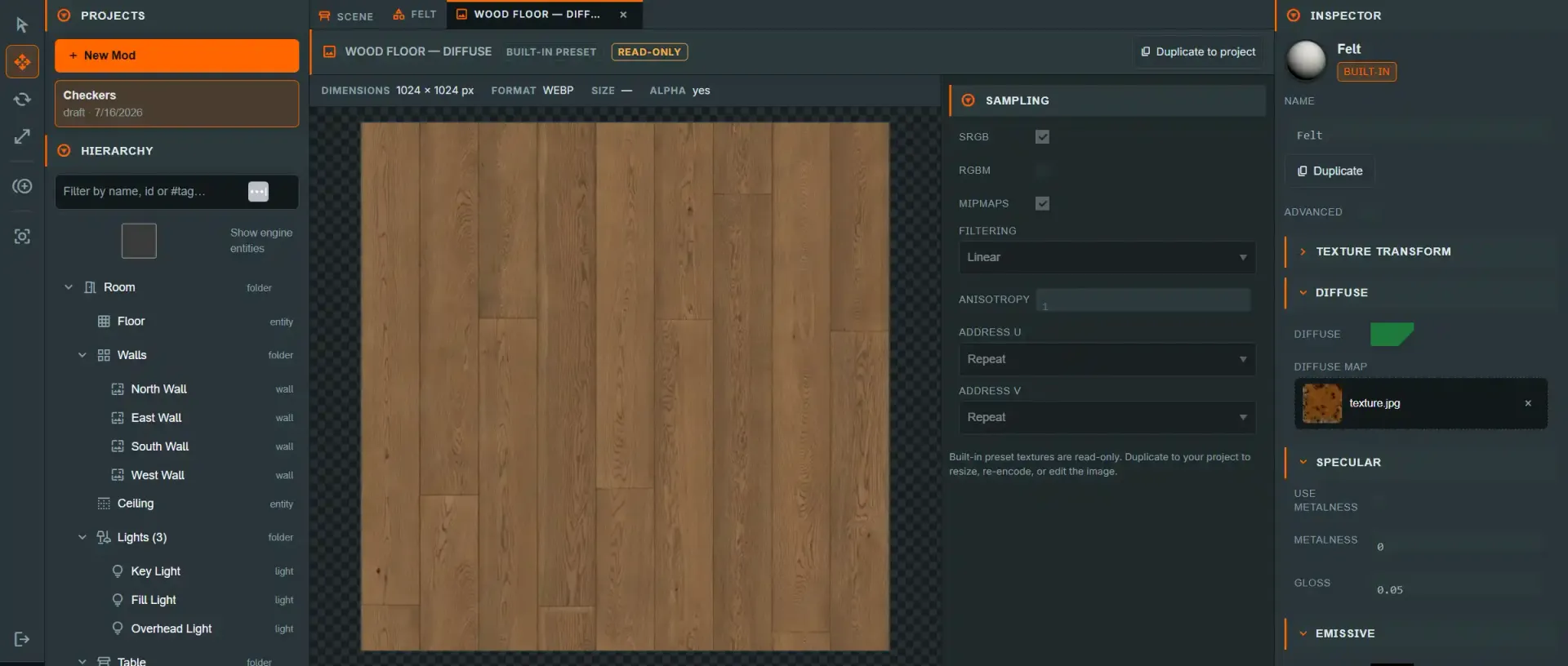
Double-click an image asset — in your project or the built-in preset library — and it opens as a tab: a checkered preview and metadata on the left, and on the right the same Sampling, Compression and WebP Compression panels the scene Inspector shows for a texture slot, plus a Resize tool and two image-editing launchers.
See the tab strip conventions — dirty dots, closing, cycling and mounted-but-hidden tabs apply here too.
Supported formats#
The browser-decodable set the editor treats as a "texture": PNG, JPEG, WebP, GIF, BMP
and AVIF — deliberately no SVG. .ktx2 (GPU-compressed Basis/KTX2) files preview as
"can't be previewed as an image" and are excluded from every panel below Compression
— they drag and assign onto texture slots from the asset explorer, but they don't appear
in this tab's Sampling/WebP controls because they aren't a browser-decodable image
content type.
Sampling#
sRGB, RGBM, mipmaps, filtering (nearest/linear), anisotropy (1–16) and address modes (repeat/clamp/mirror) for U and V — the same per-asset sampler settings the runtime applies when it loads the texture. Changes apply live; they are not a separate "save" step.
Built-in preset textures have no per-project sampler record of their own — their
settings come from defaults plus any active admin texture override. Non-admins see them
read-only; admins can edit here and publish with Save globally (writes to the
database) or, on a local dev server, Write to source (writes into
preset-overrides.json, shipping with the next deploy). As with model preset overrides,
a database row wins over the bundled file when both exist.
⚠ Write to source requires a signed-in Supabase admin, verified on the server. It was
previously gated only by loopback plus a cosmetic client-side check. A missing, malformed or
expired token, a non-admin account, or a Supabase outage is a 403 — it fails closed rather
than falling through to allow. With SUPABASE_URL unset the server falls back to loopback-only
and logs a loud warning on every write, so offline development still works.
Compression (KTX2/Basis)#
Compress to Basis encodes a .ktx2 copy beside the original — the original is
never replaced — in one of two codecs:
- ETC1S — smaller, best for color/albedo maps.
- UASTC — higher quality, better for normal maps and other detail-sensitive maps.
Only decodable image textures can be compressed this way (not an already-KTX2 asset). Compression runs in the browser and briefly blocks the main thread on large (2K+) textures — see Troubleshooting.
WebP re-encode#
Re-encode from original rebuilds this asset from its preserved originals/ copy at
a quality you choose (1–100), replacing the current bytes in place. Two conditions gate
it: the asset must already be a .webp file, and there must be a preserved original to
re-encode from (an asset uploaded before WebP conversion existed has none — the panel
says so and the button stays disabled).
Resize#
Set a target width/height (aspect-locked by default, or independent), or pick one of the
power-of-two presets computed from the current dimensions. Apply resize replaces the
texture's bytes in place with a high-quality canvas resample; the preserved
originals/ copy is untouched, so a later WebP re-encode still has the true source to
work from.
Image editors#
Two image-editing launchers, both operating on a snapshot of the current bytes and saving back over this texture:
- Open image editor — crop, rotate, flip, finetune, filters, annotations and text. A focused, fast editor for the common case.
- Open advanced editor — a full editor with layers, brushes, selections, clone and roughly 40 filters, exporting flattened back over this texture. Reach for this when the quick editor's toolset isn't enough.
Either editor takes over the whole tab body while open. An open session with unsaved edits marks the tab dirty; saving or closing clears it.
The advanced editor's layout#
The advanced editor uses the same dark theme as the rest of Edit Mode:
- Menu bar — File, Edit, View, Image, Layers, Effects, Tools and Help, followed by the
texture's name and size, undo/redo, Close and Save to texture.
Ctrl+S(Cmd+Son macOS) also saves. - Tool options bar — the active tool and its settings (size, hardness, opacity and so on).
- Tool rail — selection, painting, fill, text, retouching and distortion tools, grouped by family.
- Dock — Color, a tabbed Layer / Info / Navigator panel, and Layers with add, duplicate, rasterise and reorder buttons. When the tab is narrower than 900px the dock slides in from the right; open it with the panels button in the menu bar.
- Status bar — save state, zoom, canvas size and cursor position.
Save to texture flattens every visible layer into one image. Layers are not kept between sessions, so finish multi-layer work before you save and close.
See also#
- Item editors: Model — embedded-texture replace inside a GLB
- Working with textures
- Item editors: Material — where texture slots are assigned