
Stay in control
Watch, pause or stop your agent
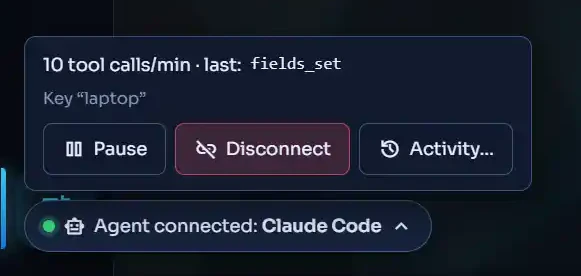
Click the Agent connected chip in your DiceyTable tab to see what the agent is doing. Its menu can pause the agent, disconnect it or list every call.
On this page8 sections
Look for the Agent connected chip in your DiceyTable tab. Click it to see what the agent is doing, then choose Pause, Disconnect or Activity… from its menu.
The chip appears as soon as you pair a tab with your agent, and it stays until the agent leaves.
Where is the agent indicator?#
The chip reads Agent connected: Claude Code, with a robot icon and your agent's name. Where it sits depends on the page:
| Page | Where the chip is |
|---|---|
| Editor | Bottom left of the viewport, beside the selection readout |
| Table | The top bar, beside the room badge |
/play hub and lobby |
A floating chip |
 (open full size)
Each paired tab shows its own chip. If the agent is working in the editor and a preview at once, you see one in each.
What the menu shows#
Click the chip to open its menu. At the top you see:
- Tool calls per minute, and the last tool the agent called.
- The key the agent uses, by its name. An agent built into your browser shows In-browser agent instead.
- A note when traffic goes through DiceyTable's relay. The relay is the fallback path through our servers, used when your browser can't reach the bridge directly. See AI agent privacy.
How do I pause the agent?#
Click Pause. From then on, every tool call in this tab is refused with paused, and the chip reads Agent paused.
Click Resume to let it carry on.
Pause works on this tab only. The agent stays connected, so other players still see the AI badge next to your name. See the AI badge other players see.
Pause is handy when you want to look around without the agent moving things. It's like asking a friend to wait a moment while you grab a snack.
Disconnect the agent#
Click Disconnect. This ends the whole agent session, and every tab paired with it lets go. In the editor, ▸ does the same while an agent is connected.
To work with the agent again, ask it to connect and type the new pairing code. A disconnected session never comes back on its own.
See every call with Activity…#
Click Activity… to open this tab's audit list. Each entry shows the tool, its action class and the outcome. It also lists the names of the arguments the agent sent, but never their values. Values can hold chat text, passwords or script code, so the list leaves them out.
The action class tells you how careful the tab was with each call. Actions that need your click explains each class.
Stop a tab capture#
An agent can ask for an exact capture of a panel, using your browser's screen sharing. While one runs, the chip also shows Tab capture on · Stop. Click Stop to end it at once. See exact panel capture.
Manage sessions from Settings#
Open ▸ to see every agent at once, across all your tabs:
- Active now lists each live session, with how many tabs it uses, how long it has run and its tool calls. Click End to stop one.
- Recent sessions lists past sessions. Each shows the client, how long it ran, its tool calls and screenshots, and why it ended.
This is the place to check if you forgot a tab somewhere, or want to stop an agent from another device.
Next steps#
Want the agent gone for longer than one session? Disconnect, revoke or remove the agent covers revoking a key, the master switch and removing the bridge.
- Actions that need your click: the dialogs only you can answer
- AI agent privacy: what the relay note means