
Finding and Selecting Entities
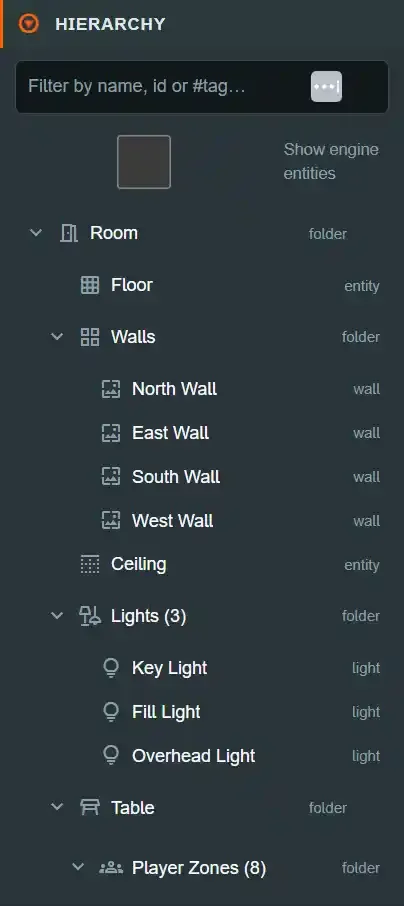
The Hierarchy is the left-hand tree in Edit Mode. It is an authoring view of
the scene document — not the engine's scene graph — so selecting a row always means
selecting a Scene Entity or
Folder by its stable id,
never a pc.Entity by guid. See Document vs engine
for why that distinction matters.
Selecting something#
Click a row to select it. Selection is shared across the shell: the same row highlights in the Hierarchy, the viewport frames its gizmo, and the Inspector on the right switches to that row's fields. Selecting a row in the viewport (clicking an entity on the table) selects the matching Hierarchy row too — the two are the same selection, not two selections kept in sync.
Only rows with a transform behind them are selectable as "objects" in the sense the toolbar
and context menu mean it. Folders (Room, Walls,
Lights, Table, Player Zones, Entities (N)) and
Tag Groups (seat-group-0) can be selected to
see a summary in the Inspector, but they have no transform to move, and no Duplicate, Hide or
Lock action — those are object-only.
That holds for multi-selections too. Ctrl/Cmd-click and Shift-click in the Hierarchy, and
Ctrl/Cmd-click or a box dragged over empty space in the viewport, all build the same selection: the
rows highlight, the entities glow, the gizmo attaches to every unlocked member, and the Inspector
adds a SELECTION (N) panel. It is its own page: see
Multi-select.
Filtering the tree#
The filter box above the tree (placeholder: "Filter by name, id or #tag…") matches every row against a single needle, case-insensitively:
- Plain text matches the row's displayName,
its internal
id, itsstableId(the structural id folders and tag-group rows carry, e.g.seat-group-0), and its tags — as substrings. - A leading
#narrows the match to tags only, so#seat-groupselects every row taggedseat-groupand nothing else. This is deliberate: tags are the preferred grouping mechanism (docs/memory/playcanvas-ecs.md), and the#form is how you search by them without also matching stray text.
A row's descriptive subtitle — the card · pos 0.0, 0.0, 0.0, 4 walls,
1.0×1.0-style caption shown under some rows — is deliberately not matched. Subtitles
embed positions, sizes, counts and intensities, so substring-matching them would make a short
or numeric query (typing 0) hit nearly the whole tree. Anything a subtitle used to be the
only way to find (a seat group's stable id, its #seat-group tag) is matched structurally
through stableId/tags instead, so nothing findable is lost by this rule.
A row is kept if it matches, or if any descendant matches — matching a deeply-nested entity keeps every ancestor visible as the path down to it, and a filtered tree force-expands so the match is actually on screen rather than inside a collapsed folder.
The eye icon — hide#
The eye icon toggles metadata.enabled on a table entity — the same field the ENTITY
header's Enabled checkbox in the Inspector controls (TableEditModeShell.tsx — the hierarchy
eye state and the Inspector's Enabled checkbox both read
object.metadata?.enabled !== false). It is not a separate hierarchy-only concept; it is a
shortcut to the entity-level control described in
The Scene Model.
Disabling an entity this way turns it, and every component on it, off. In Edit Mode only, a disabled entity still renders as a dim wireframe ghost rather than disappearing outright, so you can still find and re-enable it without hunting through the Hierarchy blind — Play mode never does this.
Clicking the eye on a folder row (Entities (N), Lights (N), …) hides or shows every
table entity underneath it in one click; the icon reflects whether every descendant is
currently hidden.
The lock icon — lock#
The lock icon toggles locked, a real field on the entity's authored state (not a
metadata convention). A locked entity:
- becomes a static physics body — nothing, including a thrown die, can push it — instead of its authored body type,
- cannot be picked up, dragged, or attached to the transform gizmo,
- stays fully visible and interactive to everything except the pointer/gizmo.
Lock is for "stop me from accidentally moving this" — a table surface prop, a fixed marker — without hiding it or removing it from the scene.
Keyboard and the context menu#
Right-clicking an object row opens a context menu with Duplicate (Ctrl+D), Copy/Paste, Hide
and Lock — the same actions as the toolbar and the eye/lock icons, gated to object rows only.
Delete/Backspace deletes the selected node when focus is not inside a text field, for every
deletable kind (object, seat-zone, seat-group, light, poster — Room/Table/groups/
surfaces/walls are structural and cannot be deleted this way). With several entities selected it
deletes all of them after one confirmation, and Ctrl+C / Ctrl+D likewise copy or duplicate
the whole selection.
Common mistakes#
- Hiding something and then wondering why it's still visible. In Edit Mode a hidden entity is a dim wireframe ghost, not invisible — that is deliberate, so you don't lose track of it. It will be fully invisible once you switch to the live table.
- Locking an entity and then trying to drag it. A locked entity will not respond to the pointer or the transform gizmo at all — check the lock icon before assuming a drag is broken.
- Typing a number into the filter expecting it to match a position. Subtitles (which carry
numeric positions/sizes) are not searched on purpose — search by name, id or
#taginstead. - Assuming "hide" and "delete" are related. Hiding never removes anything from the scene
document; it only sets
metadata.enabled = false. Nothing about a hidden entity's identity, tags or transform changes.