
Get started
Pair a DiceyTable tab with your agent
Ask your agent to connect, open Connect AI agent in your DiceyTable tab, then type the pairing code the agent shows you. Each code lasts 5 minutes.
On this page9 sections
Ask your agent to connect to DiceyTable, and it shows you a short pairing code like K7P-4QX. Open Connect AI agent
in your DiceyTable tab, type the code and click Allow.
A pairing code is a one-time password that the bridge makes up for you. Typing it is your consent. It links this one tab to that one agent, and until you type it, the tab does nothing agent-related at all. The whole thing takes about a minute.
What you'll need#
- The bridge set up in your AI app, with your key saved. See Install the DiceyTable MCP bridge and create an API key.
- A DiceyTable tab signed in to the same account as the key.
- Allow AI agents to connect to DiceyTable as you turned on in Settings ▸ AI agents. Agent access is free on every plan.
Step 1: Ask the agent to connect#
Say something like "connect to DiceyTable". The agent calls session_connect,
and the bridge hands it a pairing code plus short instructions. The agent passes both on to you. It can also open the
connect page in your browser for you.
Do this step first. The bridge only starts listening once session_connect has run. If you open the dialog too early,
it says No AI agent bridge answered on this computer.
Step 2: Open Connect AI agent#
Open it from wherever you are:
| Where you are | How to open it |
|---|---|
The editor (/editor, or Edit Mode at a table) |
▸ |
A table (/table) |
The Help menu ▸ Connect AI agent |
The /play hub, where the lobby lives |
The robot button in the top strip, beside your account chip |
| Any page | Add ?agent=connect to the address, like https://diceytable.com/editor?agent=connect |
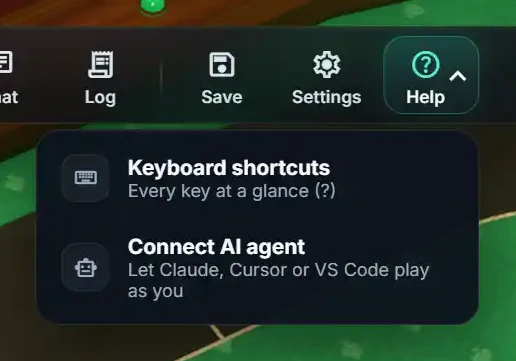 (open full size)
A link with ?agent=connect can come from anywhere, so it never connects by itself. The page first asks Connect an
AI agent and waits. Nothing happens until you click Continue, and the button that starts out selected is
Cancel.
Step 3: Allow local network access if asked#
Chrome, Edge and Brave may ask whether DiceyTable can reach devices on your local network. That's how the tab finds the bridge on your computer. Click Allow. If you block it, pairing still works through DiceyTable's relay. See Allow local network access for the bridge.
Step 4: Read the consent dialog#
The dialog is called Connect an AI agent? It names the agent and its key, as in Claude Code (key "laptop") wants to control this tab as you. Then it lists what the key allows. It also tells you that other players will see AI agent active. If the relay is in use, it says your tool traffic passes through DiceyTable's servers.
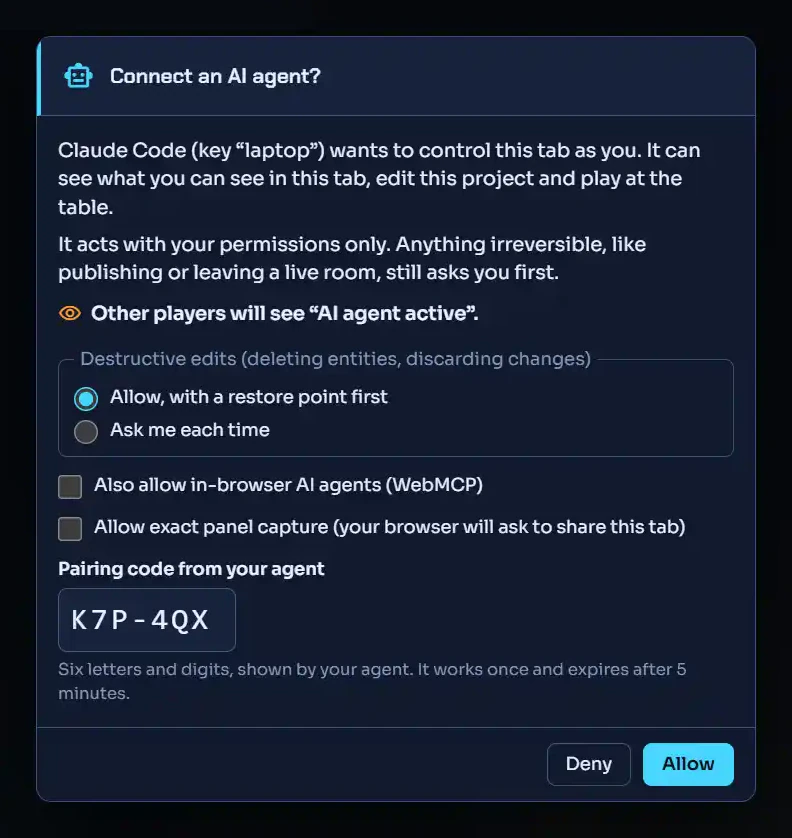 (open full size)
Step 5: Type the code and click Allow#
Pick your options (see the next section). Then type the code into Pairing code from your agent and click
Allow. Capital letters, spaces and the hyphen don't matter. Codes never use 0, 1, I, L or O, so the
field refuses those and tells you why. Allow stays grayed out for a moment after the dialog opens. That way a
click you were already making can't land on it.
You know it worked when the dialog closes and Agent connected: Claude Code appears in the tab. To be sure, follow Check your agent is connected.
What do the consent options mean?#
| Option | Starts as | What it does |
|---|---|---|
| Destructive edits | Allow, with a restore point first | The agent may delete entities or discard changes when it confirms the call. The first time in a session, DiceyTable saves a restore point called Before AI agent changes in the Versions panel. Ask me each time turns each one into a question for you instead. |
| Also allow in-browser AI agents (WebMCP) | Off | Also lets an AI agent built into your browser use this tab. See In-browser AI agents. |
| Allow exact panel capture | Off | Lets the agent ask for a pixel-exact picture of a panel. Your browser still asks before it shares the tab. See Exact panel capture. |
Some actions always need your click, whatever you pick here. Publishing and deleting a project are two of them. See Actions that need your click.
What if the code doesn't work?#
A code lasts 5 minutes and allows 5 wrong tries. After that, ask the agent for a new one. Calling
session_connect again gives a fresh code for the same session. Deny, or the Esc key, closes the dialog and
connects nothing.
A code also ends with its session. Say the agent disconnected to start over after it showed you the code. Then the dialog says That code did not match, even though you typed it right. Ask for a new code. More fixes are in Fix pairing code problems.
Next steps#
- Check your agent is connected: three quick calls that prove it works.
- Use one agent across several tabs: previews and new tabs join without a code.
- Watch, pause or stop your agent: what the Agent connected chip can do.