
Get started
Create an API key for your AI agent
Create a dtpat_ key in Settings ▸ AI agents, choose what it may do and when it expires, then save it with login so no config file ever holds it.
On this page10 sections
Open Settings ▸ AI agents, turn on agent access, and click Create key. Pick what the key may do and when it expires, then copy it. You see the key only once.
A key is how the bridge proves to DiceyTable that it works for you. Every key starts with dtpat_. Keys are free, and AI agent access works on every plan. Only you can make one: an agent can't create, list or revoke keys, because every control on that Settings page is out of its reach.
What can a key do?#
A key works only with DiceyTable's agent service. It can't publish, spend dice chips, or read your account. On its own, it can start an agent session and nothing else.
A session does nothing until you pair it with a DiceyTable tab that you're signed in to. So even a leaked key needs your tab and your pairing code before it can touch your work. It can still use up its own URL-import allowance until you revoke it. How URL imports are fetched safely explains that allowance.
Step 1: Turn on agent access#
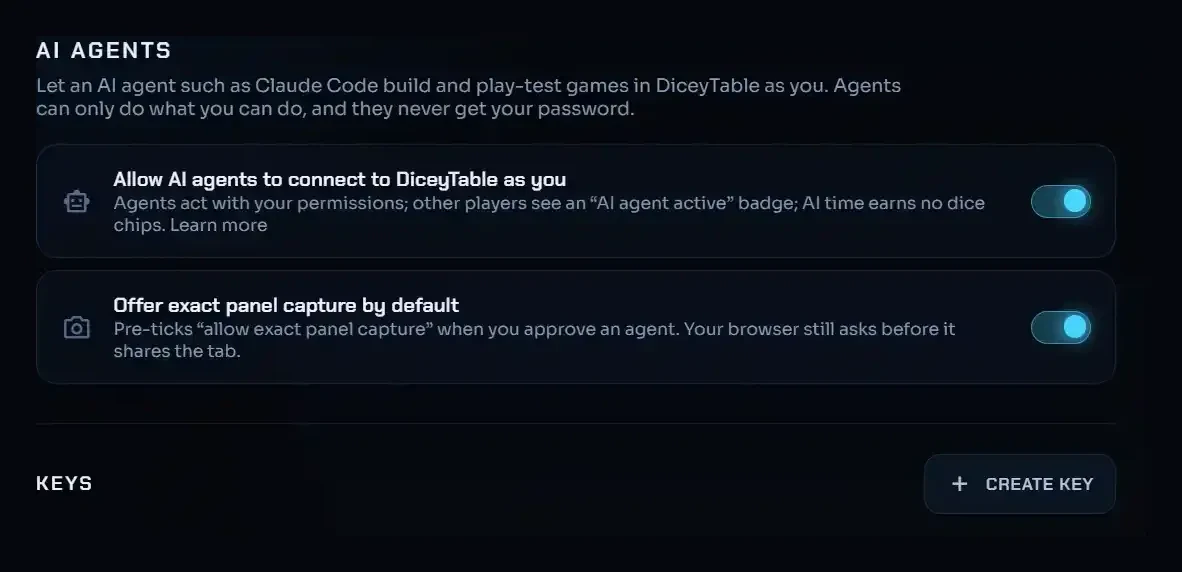
In ▸ , turn on Allow AI agents to connect to DiceyTable as you. Create key stays greyed out while this switch is off.
 (open full size)
Step 2: Name the key and pick what it may do#
Click Create key. Give it a Name that says where it will live, such as laptop or work-desktop. The name shows up in the tab's consent dialog and on the agent indicator, so you can tell your keys apart.
Under What it may do, tick the permissions the agent needs:
| Permission | Scope | Default | Lets the agent |
|---|---|---|---|
| Read | read |
always on | See what you can see in the tab. You can't untick it. |
| Edit projects | editor:write |
on | Change entities, assets and settings in the editor. |
| Play at the table | table:play |
on | Move pieces and take turns as you, at a preview, a live table or in the lobby. |
| Local files | files:local |
on | Read and write files on the computer running the agent. |
| Import from URLs | files:url |
on | Fetch assets from the web through DiceyTable's audited proxy. |
| Request publishing | publish:request |
off | Open the Publish dialog for you, filled in. You still review it and click Publish. |
No permission skips your say-so. Publishing, deleting and the other actions that can't be undone always wait for your click in the tab, whatever the key allows. Actions that need your click lists them.
Step 3: Choose when it expires#
Pick 7, 30, 90 or 365 days under Expires after. The default is 90. A shorter life means less to worry about if the key ever gets out.
Step 4: Copy the key#
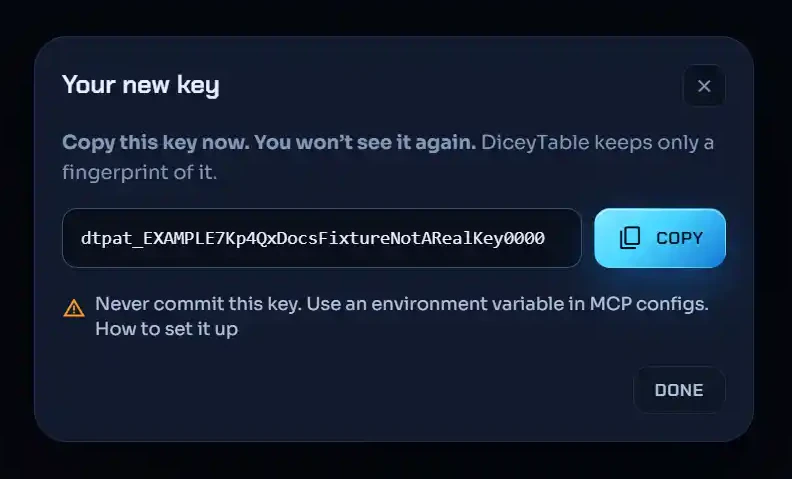
Click Create key, then Copy. The dialog says Copy this key now. You won't see it again. DiceyTable keeps only a fingerprint of the key, so nobody can show it to you later. If you lose it, revoke it and make a new one.
 (open full size)
You can have up to 10 active keys at once. Revoked and expired keys stay in the list, greyed out, for your records.
Step 5: Save it with login#
Paste the key into the bridge's login command:
npx -y @diceytable/mcp-bridge@1 login
The bridge checks the key and saves it in your user folder, readable only by you. On Windows that's %APPDATA%\diceytable\credentials.json. On macOS and Linux it's ~/.config/diceytable/credentials.json. Install the DiceyTable MCP bridge walks through this step.
With the key saved, your AI app's config never needs it. The setup pages for Claude Code, Claude Desktop, Cursor and VS Code each show the safe way to use an environment variable instead. The bridge reads DICEYTABLE_TOKEN, and that variable wins over the saved file.
Never commit a key#
Keep keys out of mod repositories, dotfile repositories and any shared MCP config, such as .mcp.json, .cursor/mcp.json or .vscode/mcp.json. Mod repositories are public on purpose, so a committed key is a published key.
⚠ Nothing will spot a leaked key for you. DiceyTable isn't part of GitHub's secret scanning. If a key leaks, revoke it in Settings right away.
To catch a slip before it ships, add a pre-commit or gitleaks rule for the pattern dtpat_[0-9A-Za-z]{49}. That's 43 random characters plus a 6-character checksum.
Check which key is in use#
Run npx -y @diceytable/mcp-bridge@1 status. It shows the key's name and the first few characters, never the whole key. It also shows where the key came from, your account, the permissions and the expiry date. doctor shows the same, and warns when a key expires within 7 days.
In Settings, each key shows its permissions, its expiry, and when and by which app it was last used. That last-used time updates at most every 5 minutes.
Why did my key stop working?#
The agent reports a short error code. Here's what each one means:
| Code | What happened | Fix |
|---|---|---|
no-token |
The bridge found no key. | Run login, then restart your AI app. |
invalid-token |
The key has a typo, is cut short, or isn't one of ours. | Paste it again in full, or make a new one. |
token-expired |
The key reached its expiry date. | Create a new key and run login again. |
token-revoked |
Someone revoked the key. | Create a new key. Revoked keys never come back. |
agent-access-disabled |
The switch in Settings is off. | Turn Allow AI agents to connect to DiceyTable as you back on. |
scope-denied |
The key lacks a permission that tool needs. | Create a key with that permission. The error names it. |
The bridge reads the key when it starts. After login, restart your AI app or reconnect the server. AI agent error codes lists every other code.
Related#
- Disconnect, revoke or remove the agent: revoke a key, or switch all agents off at once.
- AI agent privacy: what leaves your computer, and what Settings keeps a record of.
- Pair a DiceyTable tab with your agent: the next step once the key is saved.