
Get started
Allow local network access for the bridge
Chrome, Edge and Brave ask before a site may reach apps on your computer. Allow it for diceytable.com so your agent connects directly. Blocking still works.
On this page7 sections
Your browser asks because DiceyTable wants to talk to the bridge, a small program running on your own computer. Click
Allow for diceytable.com, and your agent connects straight to your tab.
The bridge is the helper your AI app starts to reach DiceyTable. It waits at 127.0.0.1, which is your computer's own
address. Newer browsers ask you before any website may reach an address like that. The check is called Local Network
Access, and it protects you from pages that quietly poke at devices in your home. It's a good rule. You just need to
let one site through.
When the prompt shows up#
You see it the first time you pair a tab, right after you open Connect AI agent (see Pair a DiceyTable tab with your agent). Chrome and Edge ask from version 147, when the check grew to cover the kind of connection the bridge uses. Brave uses the same prompt. Firefox may show one too.
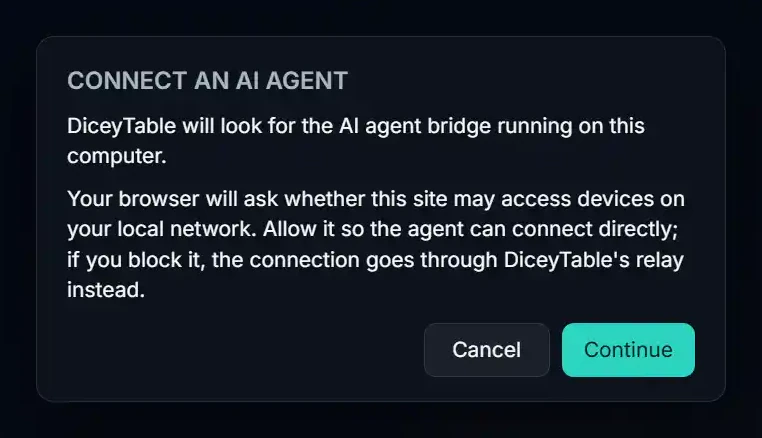
DiceyTable warns you first. If your browser is about to ask, a notice called Connect an AI agent says DiceyTable will look for the bridge on this computer, and that your browser will ask about your local network. Click Continue, then click Allow in the browser's own prompt. The browser remembers your answer for the site, so you only do this once.
 (open full size)
What happens if I block it?#
Nothing breaks. The tab connects through DiceyTable's relay instead. The relay is a backup route: tool calls go from the bridge to DiceyTable's server and back down to your tab. The consent dialog tells you when that happens.
The relay works fine, with two small costs. Tool traffic passes through our servers, and screenshots shrink to about 400 KB to fit its 2 MB messages. How the DiceyTable MCP bridge works shows both routes side by side.
How do I change my answer later?#
- On
diceytable.com, click the icon at the left end of the address bar. - Open the site settings.
- Set Local network access to Allow. Or reset the permission, so the browser asks again next time.
- Reload the tab and pair again.
On a work or school computer#
An administrator can turn the prompt off for everyone, so you never see it. If that happens, ask them to add
https://diceytable.com to the LocalNetworkAccessAllowedForUrls browser policy. Or skip the change and use the
relay, which needs no policy at all.
What about Safari and Firefox?#
- Safari never lets a web page reach
127.0.0.1. Safari tabs always pair through the relay, which the bridge opens for you once a session starts. If you started the bridge with--no-relay, Safari can't pair at all, so remove that flag. See the bridge command line reference. - Firefox reaches the bridge directly. Allow the prompt if one appears.
- Brave may also need its Shields settings checked for the site if nothing connects.
Good to know. If DiceyTable itself runs on your computer, at an address like 127.0.0.1 or localhost, there's
no prompt. Both ends already live on the same machine, so the browser has nothing to ask about.
If it still doesn't connect#
Run the bridge's self-check with npx -y @diceytable/mcp-bridge@1 doctor. It prints a hint for each browser. Then work
through Fix an agent that won't connect.
DiceyTable runs in any modern browser on a laptop, tablet or phone. See board games on any device for the full list.
Next steps#
- Check your agent is connected: prove the whole chain works.
- AI agent privacy: what passes through the relay, and what never does.