
Build with an agent
Build a game with an AI agent
An AI agent builds a DiceyTable game in a loop. It looks, changes the scene, adds decks and scripts, checks its work, play-tests, then asks you to publish.
On this page11 sections
An AI agent builds a game the way you would: in a loop. It looks at the project, makes a small change, saves and checks it, play-tests it, and looks again. When the game works, it asks you to publish, and you click the button.
Each step below gets a short summary and a link to its own guide. You can hand the whole page to your agent, too. Curious what kind of games fit? The board game maker page shows what people build, and AI agents and MCP shows the agent side.
What you'll need#
- An editor tab paired with your agent. The quick start gets you there in about 10 minutes.
- An API key with the Edit projects and Play at the table permissions.
- Optional, but worth it: paste our standing instructions into your agent first.
Step 1: Look before changing anything#
A good agent starts by reading. page_info says what the tab is showing. project_list finds your projects, and
project_open or project_create with subject: "game" opens one.
Then project_status checks the project lease. The lease is the editor's lock: only one tab at a time may change
a project. A tab without it is read-only, for the agent and for you. Last, diagnostics_get records the errors that
were already there, so new ones are clearly the agent's.
Step 2: Build the scene#
The agent places boards, pieces, dice and cards with entity_create. It changes them with entity_update and checks
the result with scene_tree. Any control in the editor can also be set by its field id with fields_set. Lengths are
in feet and angles in degrees. Seats, zones and snap points have their own tools.
Let an agent edit your scene covers all of it.
Step 3: Make the decks#
Card games need a deck. The agent imports a card sheet and a card back, makes the deck with deck_create, and names
each card with deck_set_cards. Then screenshot_card shows whether the art lines up.
See Build a deck of cards with an agent for the steps, and Import models, images and sounds for getting the art in.
Step 4: Write the rules#
A game that enforces its own rules needs a script. The agent writes it with script_write, which saves through the
Script editor and returns the compile errors and the safety scanner's findings. The agent fixes each one before moving
on.
Write game scripts with an agent explains the two kinds of script and the rules the scanner applies.
Step 5: Save and check#
After each batch of changes, the agent calls project_save, then project_validate. Validation runs every check at
once: the scene, the scripts, the safety scanner, missing files and credits. Each finding comes back as a diagnostic.
Find errors with the diagnostics hub shows how to read them without getting lost.
Step 6: Play-test it#
playtest_start saves the game and opens a preview, a private copy of the table that pairs with the agent by
itself. In the preview, the agent plays with the table_* tools: draw, deal, roll, move and flip. It waits with
table_wait_settled until things stop moving. Then table_assert checks what should be true, such as "7 cards in
seat 1's hand".
When a check fails, the agent fixes the game in the editor tab and reloads the preview. See Play-test your game with an agent.
Step 7: Look at it#
Numbers can pass while the game still looks wrong. screenshot_viewport with hide: "chrome" and a camera such as
"iso" shows the agent what a player sees.
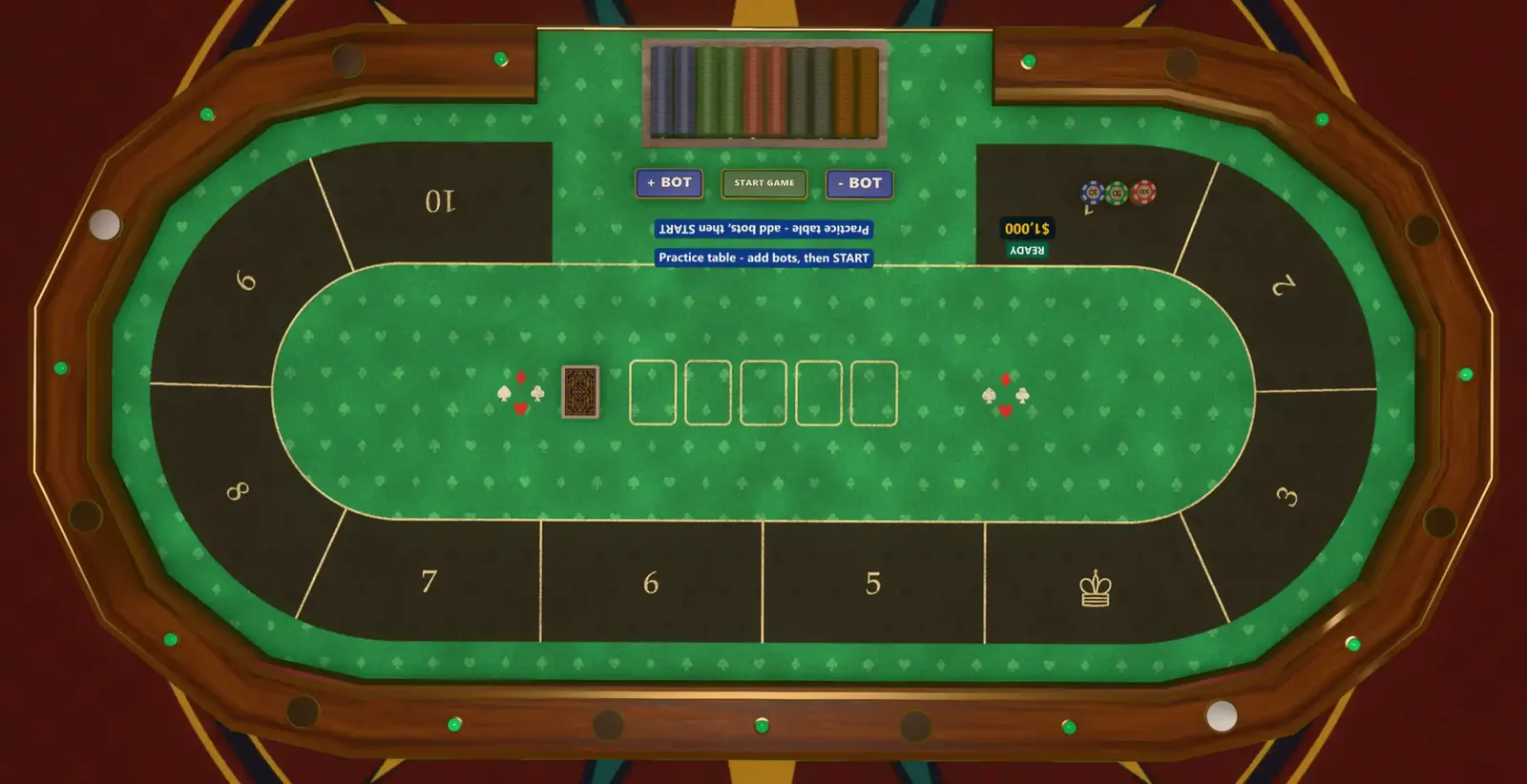 (open full size)
Take screenshots with an agent lists the cameras and the size limits.
Step 8: Ask to publish#
publish_preview reports what a publish would send and anything that would block it. It changes nothing.
publish_request opens the Publish dialog for you, filled in. It needs the Request publishing permission, which
is off by default. Even then, the agent never publishes. You review the credits it added and click Publish
yourself.
Get your game ready to publish walks through it.
What can't the agent do on its own?#
Some actions always wait for your click in the tab, whatever the key allows:
- Publishing, deleting a project, restoring a version or deleting assets.
- Turning on the
read-hidden-informationorplugin-callcapabilities. - Approving the credits it wrote for imported files. There is no tool for that.
Deleting entities or reloading a preview needs the agent to confirm first, and the first such change in a session
saves a restore point. undo and redo share your own history, so nothing changes behind your back.
Actions that need your click has the full list.
Next steps#
- Example prompts: what to say to get each step started.
- Let an agent edit your scene: the first real step, in detail.
- Build a room or table pack: the same loop for the space around the game.