
Build with an agent
Exact panel capture for AI agents
Exact panel capture lets an AI agent copy the real pixels of one DiceyTable panel through tab sharing. It's off until you allow it, once per session.
On this page8 sections
Exact panel capture lets an agent take the real pixels of one panel, using your browser's own tab sharing. Allow it when the agent needs to see something the normal panel screenshot draws badly, such as the image editor or a 3D preview inside a dialog.
It's off unless you turn it on. Even then, your browser asks you to share the tab, and you click once per session.
Approximate or exact?#
screenshot_panel has two modes. The default, mode: "approximate", redraws the panel's HTML as an image. That's quick and needs nothing from you. But it's a redraw, so some things come out blank or wrong:
- images from other sites that don't allow it,
- embedded frames, such as the mod sandbox and the advanced image editor,
- some visual effects.
mode: "exact" uses the browser's screen sharing to copy what is really on screen, frames and 3D included. Most of the time the agent doesn't need it. Text from describe_panel or an approximate image answers most questions, as Take screenshots with an agent explains.
Step 1: Allow it when you pair#
Tick Allow exact panel capture (your browser will ask to share this tab) in the consent dialog when you pair the agent. If you want that box ticked every time, turn on Offer exact panel capture by default in Settings ▸ AI agents.
If you didn't tick it, an exact capture fails with exact-capture-disabled. To change your mind, disconnect the agent and pair again with the box ticked.
Step 2: Click once to start sharing#
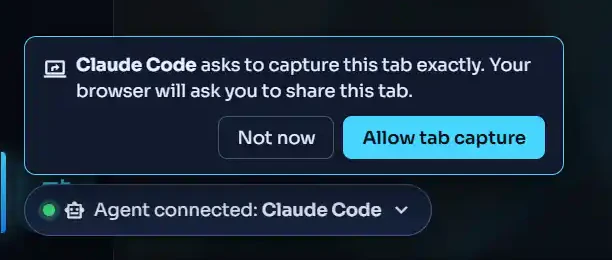
A browser won't let a page start screen sharing without a click, and the agent's call isn't a click. So the agent's indicator in the tab opens a prompt instead: Claude Code asks to capture this tab exactly. It shows the name of your agent, with two buttons.
- Click Allow tab capture. Your browser opens its share picker.
- Pick This tab, then share.
The agent's call waits up to 60 seconds for you. If you click Not now, or the time runs out, the call fails with needs-user-gesture. After you say no, the prompt stays quiet for 10 minutes unless the agent passes ask: true.
 (open full size)
Only this tab, and nothing streams#
Screen sharing could share anything, so the tab checks first. Before it reads a single frame, it proves the share is a browser tab and that the tab is itself. If you pick another tab, a window or your whole screen, it stops the share at once and answers not-self-capture. Nothing is captured.
After that, a frame is taken only when the agent asks. The tab encodes it, returns it and throws it away. Nothing is recorded. The pixels are your own view of your own tab, so hidden cards stay hidden. AI agent privacy covers what leaves your computer.
Which browsers can do it?#
Only desktop Chrome and Edge.
- Chrome 132 and newer capture only the panel.
- Chrome 104 to 131 crop to the panel's rectangle, which would also catch anything lying on top of it, like an open menu. So the tab checks for that first and refuses if something covers the panel.
- Firefox, Safari and phone browsers can't prove the share is this tab, so they answer
exact-capture-unsupported.
The agent can pass fallback: true to get an approximate capture instead of an error.
How do I stop a tab capture?#
While sharing is on, the browser's "sharing this tab" bar stays in view, and the indicator shows Tab capture on · Stop. Click Stop in either place.
It also stops by itself:
- after 5 minutes without an exact capture,
- when you pause or disconnect the agent,
- when you close the tab or turn off AI agent access,
- when you enter VR.
Errors#
| Code | What happened | Fix |
|---|---|---|
exact-capture-disabled |
You didn't tick the box when you paired | Pair again with it ticked, or use approximate mode |
exact-capture-unsupported |
Not desktop Chrome or Edge, the panel is hidden or covered | Use approximate mode, or pass fallback: true |
needs-user-gesture |
Nobody clicked Allow tab capture in time, or you cancelled the picker | Click Allow tab capture, then pick This tab |
not-self-capture |
You shared a different tab, a window or a screen | Nothing was captured. Pick This tab next time |
Next steps#
- Take screenshots with an agent: the cheaper ways to see a panel.
- AI agent privacy: what leaves your computer, and what doesn't.
- Pair a DiceyTable tab with your agent: where the exact capture box lives.