
Get started
Connect an AI agent to DiceyTable
Create a key, save it with the bridge's login command, add the bridge to Claude Code or another MCP app, then type the pairing code into DiceyTable.
On this page9 sections
Create a key in DiceyTable, save it with the bridge's login command, and add the bridge to your AI app. Then type the pairing code your agent shows you into a DiceyTable tab. It takes about 10 minutes, and it's free on every plan.
The bridge is a small program from npm that links your agent to your browser tab. You never download it by hand, because your AI app runs it for you. Curious what all this lets you build? See Build a board game with AI.
What you'll need#
- A DiceyTable account. Sign in at
diceytable.comin the browser you'll use. - Node.js 20.19 or newer. Run
node --versionin a terminal to check. - An MCP app. Claude Code, Claude Desktop, Cursor and VS Code with Copilot all work.
- A recent browser. Chrome or Edge 147 or newer, or Firefox 153 or newer, connect straight to the bridge. Safari works too, through DiceyTable's relay.
Step 1: Create a key#
Open Settings ▸ AI agents. Turn on Allow AI agents to connect to DiceyTable as you, then click Create key. Keep the default permissions and copy the key. It starts with dtpat_.
⚠ The key is shown only once. Copy it before you close the dialog, and never paste it into a file you might share.
Create an API key for your AI agent explains each permission and where a key may live.
Step 2: Save the key with login#
Run this in a terminal and paste the key at the hidden prompt:
npx -y @diceytable/mcp-bridge@1 login
The bridge checks the key with DiceyTable. Then it prints your account name and the key's permissions. It saves the key in your user folder, so none of your app settings ever hold it.
Step 3: Add the bridge to your AI app#
For Claude Code, run:
claude mcp add diceytable -- npx -y @diceytable/mcp-bridge@1
Using another app? Follow the page for Claude Desktop, Cursor or VS Code. Any other app that runs MCP servers works too. Install the DiceyTable MCP bridge covers those.
Step 4: Ask the agent to connect#
Start a new chat and say "connect to DiceyTable". The agent shows you a pairing code such as K7P-4QX. A code lasts 5 minutes and allows 5 wrong tries. If it runs out, ask for a new one.
Wait for the code before the next step. The bridge only starts listening once the agent asks to connect.
Step 5: Type the code in DiceyTable#
In the editor, choose ▸ . You can also open https://diceytable.com/editor?agent=connect. If your browser asks to reach devices on your local network, allow it. That's how the tab finds the bridge on your computer. Why the browser asks about your local network has the details.
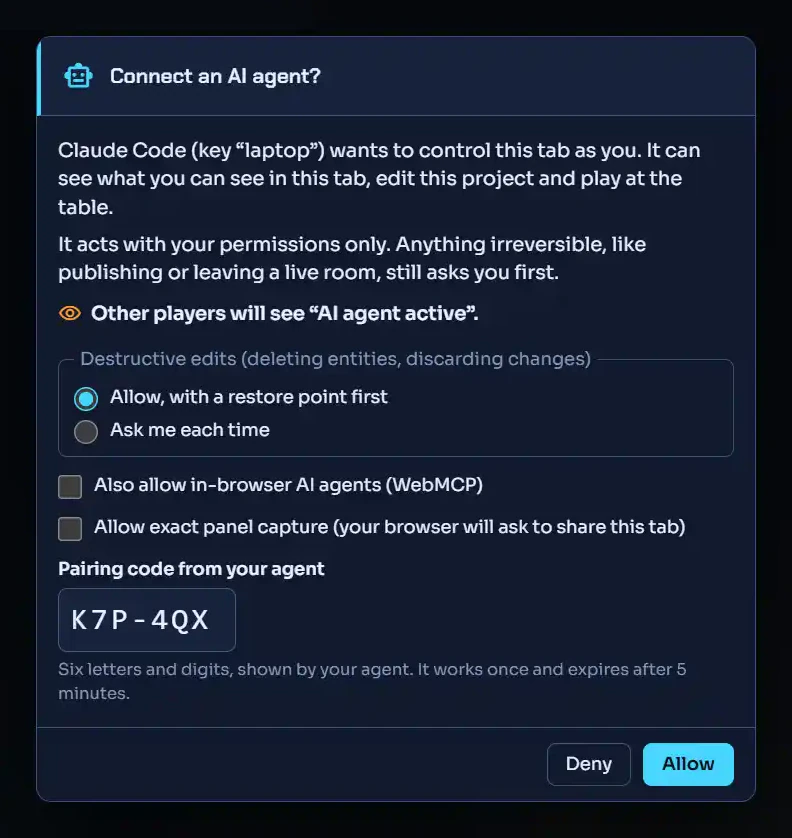
Read the Connect an AI agent? dialog. It names your agent and the key, and it lists what the key allows. Type the code into Pairing code from your agent and click Allow.
 (open full size)
Pair a DiceyTable tab with your agent explains each option in the dialog.
Step 6: Check it works#
The tab now shows Agent connected with your app's name. Ask the agent to take a screenshot of the viewport. If a picture of your scene comes back, every link in the chain works. Check your agent is connected shows what a healthy setup looks like.
If it doesn't work#
- "No AI agent bridge answered on this computer." You opened the dialog before the agent asked to connect. Ask the agent to connect, then try again.
- The code doesn't match. It may have run out. Ask the agent for a new one.
- Anything else. Run
npx -y @diceytable/mcp-bridge@1 doctorin a terminal. It checks Node.js, your key, the network and the ports. Then see Fix an agent that won't connect.
Next steps#
- Instructions to give your AI agent: a starting prompt that keeps the agent on track.
- Build a game with an AI agent: the loop from empty project to play-test.
- What is MCP?: the idea behind all of this, in plain words.