# Check your agent is connected
> Ask your agent for session_status, session_list_tabs and one screenshot_viewport. If all three answer, your AI agent is connected to DiceyTable end to end.
- Question: How do I check my AI agent is connected to DiceyTable?
- Source: https://diceytable.com/docs/ai-agents/setup/verify
- Last verified: 2026-10-09
Ask your agent to make three calls: `session_status`, then `session_list_tabs`, then `screenshot_viewport`. If all three
answer, everything between your agent and your DiceyTable tab works.
Each call tests one link in the chain. The first checks the bridge and your key. The second checks that the bridge can
see your tab. The third makes the tab do real work. Think of it as a sound check before the band plays. You can say it
in plain words: *"Call session_status, then session_list_tabs, then take a screenshot of the viewport."*
## What you'll need
- A paired tab. If you haven't paired yet, start with
[Pair a DiceyTable tab with your agent](https://diceytable.com/docs/ai-agents/setup/pairing).
- For the third check, an editor, preview or table tab. A lobby or settings tab has no 3D view to capture.
## Check 1: The bridge and your key
[`session_status`](https://diceytable.com/docs/ai-agents/reference/tools/sessions#sessionstatus) is answered by the bridge itself, so it works even
before any tab is paired. A healthy answer looks like this:
```text
DiceyTable bridge 1.0.0 (protocol v1.1)
Key: laptop (file); API https://api.diceytable.com reachable
Hub: hub on 127.0.0.1:47621; session 8c1f…
Tabs paired: 1
```
Read it line by line:
| Line | Healthy | If not |
|---|---|---|
| `Key:` | Your key's name, then `file` (saved with `login`) or `env` (from `DICEYTABLE_TOKEN`) | `none`: save your key. See [Install the DiceyTable MCP bridge](https://diceytable.com/docs/ai-agents/setup/install). |
| `API … reachable` | `reachable` | A network, proxy or firewall problem. Run `doctor` (below). |
| `Hub:` | `hub` or `relay-client`. Both are fine. | `none` after connecting means ports 47621 to 47625 are all taken, unless you started the bridge with `--relay`. |
| `session` | An id | `not started`: ask the agent to connect. |
| `Tabs paired:` | `1` or more | `0`: finish pairing. |
The hub is the bridge's meeting point on your computer. `relay-client` means another app's bridge got there first, and
yours shares it. [How the DiceyTable MCP bridge works](https://diceytable.com/docs/ai-agents/concepts/how-it-works) explains why that's fine.
## Check 2: The bridge and your tab
[`session_list_tabs`](https://diceytable.com/docs/ai-agents/reference/tools/sessions#sessionlisttabs) lists every DiceyTable tab the bridge can see:
```text
tab_x7k2p9 editor paired selected My Game · DiceyTable
```
Each line shows the tab's id and its kind: `editor`, `preview`, `table`, `lobby` or `settings`. Then it says whether
the tab is `paired` with this agent, belongs to `(another agent)`, or is `(not paired)`. The page title sits inside an
`` block, because a game's name can end up there. The agent treats that text as data, never as orders.
An empty list means no tab has reached the bridge yet. Open **Connect AI agent** again. A tab marked `(not paired)`
means the code wasn't accepted, so ask for a new one.
## Check 3: The tab doing real work
[`screenshot_viewport`](https://diceytable.com/docs/ai-agents/reference/tools/screenshots#screenshotviewport) captures what you see in the 3D view. Every
argument is optional. This one hides gizmos, grids and other overlays but keeps the game:
```json
{ "hide": "chrome" }
```
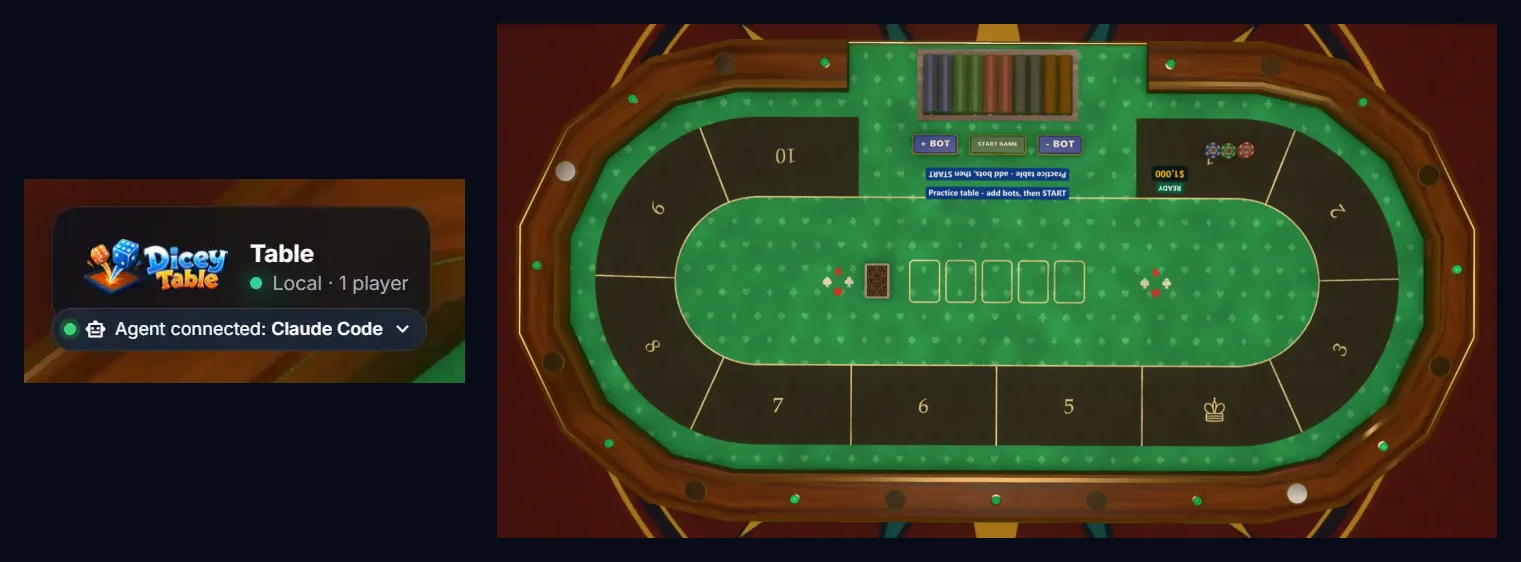
It returns a WebP image, 1280 px on the long side, of at most about 600 KB. It also sends a short report on the size and
the camera. If the image arrives, the call went from the agent, through the bridge, into your tab, past its permission
checks and out of the renderer. Everything works. See
[Take screenshots with an agent](https://diceytable.com/docs/ai-agents/workflows/screenshots) for what else it can do.
## What "working" looks like in the tab
- The chip reads **Agent connected: _your app's name_**.
- [Settings ▸ AI agents](https://diceytable.com/play/settings) lists the session under **Active now**, with the number of tabs attached.
- At a live table, everyone sees an **AI** badge by your name. That's expected. See
[The AI badge other players see](https://diceytable.com/docs/ai-agents/concepts/multiplayer-disclosure).
## What if one of the checks fails?
Run the bridge's self-check from a terminal:
```sh
npx -y @diceytable/mcp-bridge@1 doctor
```
It checks Node.js, the five hub ports, your key, whether the API answers, your clock, and the folders the agent may
read. It also prints a hint for each browser. It exits with status 1 when a check fails. Then try
[Fix an agent that won't connect](https://diceytable.com/docs/ai-agents/troubleshooting/connection), or start from
[Fix AI agent problems](https://diceytable.com/docs/ai-agents/troubleshooting).
## Next steps
- [Use one agent across several tabs](https://diceytable.com/docs/ai-agents/setup/multiple-tabs): add a preview or a second tab.
- [Build a game with an AI agent](https://diceytable.com/docs/ai-agents/workflows/build-a-game): put your connected agent to work.